Physical Address
304 North Cardinal St.
Dorchester Center, MA 02124
Physical Address
304 North Cardinal St.
Dorchester Center, MA 02124

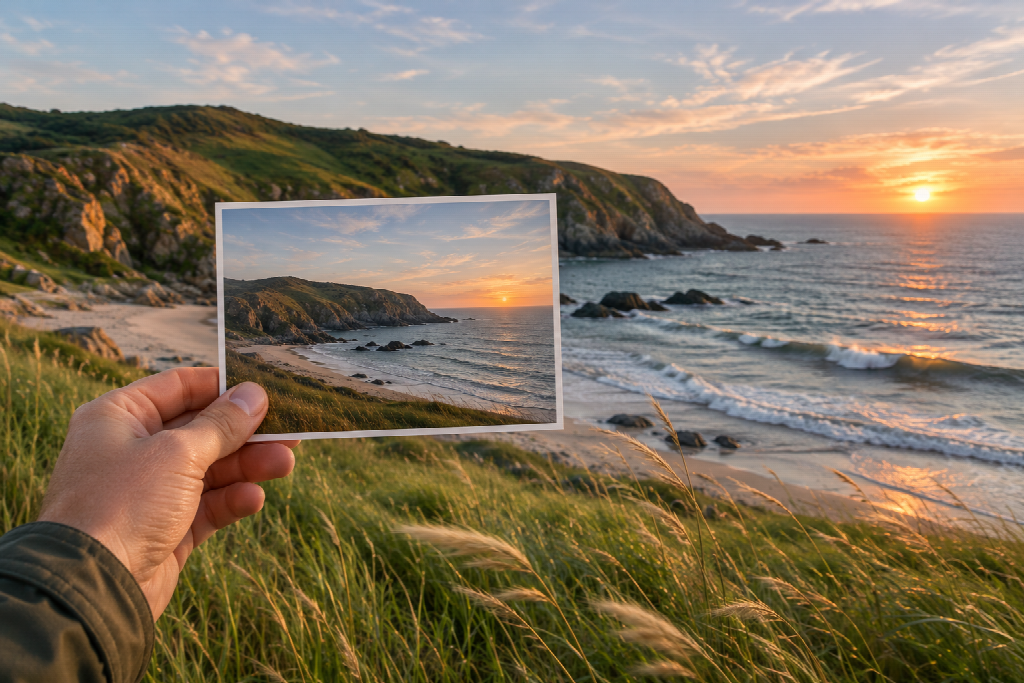
A photograph already makes several decisions for the viewer. It shows where the subject stands, what the light looks like and which details deserve attention. When that image becomes a video, the creator has to decide what happens next.
A person might glance toward a window. A product could turn slowly on a table. Wind might move through a field while the camera stays still. The movement does not need to be dramatic. In many cases, one small action makes a more convincing clip than several unrelated effects.
I treat the source image as the opening frame of a short scene. The prompt describes the next beat: what moves, how the camera behaves and what the viewer should notice.
The source image affects how much movement makes sense. A face close to the edge of the frame may not have room for a turn. A small product surrounded by clutter may be hard to follow once it starts moving. Blurry details can become more distracting in a video.
Before generating anything, I would decide what needs to stay consistent. That might be the outline of a product, the style of an illustration or a carefully arranged background. Once those priorities are clear, it becomes easier to describe an action that does not compete with them.
A portrait could use a slight change in expression or a small head movement. A product might rotate just enough to reveal its shape. A landscape could have a slow pan or a hint of movement in the grass.
Short clips have limited room for action. Asking a person to walk, wave, turn and change position in a few seconds can make the result hard to follow. Choose one main movement first. If it works, the creator can decide whether a second shot would add anything.
“Make it cinematic” describes a feeling, not a specific shot. The prompt needs to say what the viewer will see.
Start with the subject’s action. Then decide whether the camera should move. If a cup is rotating, a steady camera may help viewers see its shape. If a person looks up, a slow push toward the face could make the moment feel more intimate.
Verbs such as “turn,” “tilt,” “drift,” “rise,” “rotate” and “pan” describe visible movement. They give the model a clearer direction than broad terms such as “beautiful” or “dynamic.”
For example:
The ceramic cup rotates slowly on the table as morning light moves across its surface. The camera makes a gentle push in.
That prompt identifies the action and camera movement. After generation, the creator can judge whether the cup actually turns, whether the speed feels right and whether the camera draws too much attention.
A simpler prompt may be better for a face. “She looks toward the window and smiles slightly” gives the model one thing to animate. Adding a camera orbit, changing background and dramatic lighting may distract from the expression.
Different models can interpret the same image in different ways. One may add more camera movement; another may preserve the original framing more closely. The right choice depends on what the clip needs to show.
An AI image to video generator lets creators start with an uploaded image, describe the desired motion and choose among different model families. Before starting a final render, check the available options for clip length, resolution, aspect ratio, sound and cost. Those details can change, and a setting that works for a social post may not suit a product page.
For a vertical video, the subject needs room in the crop. A product preview may call for steady framing and a clean background. An illustration may need a model that keeps its style intact when parts of the image move.
The most impressive demo is not always the right reference. A model can produce dramatic motion, but that may be too much for a calm portrait or a minimal product shot. Match the settings to the purpose of the clip instead of choosing the largest or longest option by default.
If the tool offers a low-stakes way to preview a prompt, use that stage to test the action and composition. Once those feel right, check the final output settings.
A useful prompt says what the viewer should see. It does not need to explain the full story behind the picture.
I often think in this order: subject, action, camera, then mood or lighting. For a portrait, that might be, “The woman turns toward the window and smiles faintly; slow push in; quiet morning light.” For a product, it could be, “The bottle turns a quarter rotation on a plain surface; keep the camera steady; soft side lighting.”
The action should come first. Mood words can refine the result, but “dreamy” or “premium” does not tell the model what to move.
Avoid describing details that are already visible unless you want them to change. If the photo clearly shows a blue coat and a brick wall, repeating those details may pull attention away from the actual motion. Focus the prompt on what is new: a turn, a small gesture or a camera move.
The prompt should also fit the length of the clip. A brief shot can usually carry one clear action. A longer sequence may need separate beats, but it is often easier to create two clips and edit them together than to ask one generation to handle too much.
After generation, I would watch the clip once for the action and again for visual problems. Does the person turn in the intended direction? Does the product keep its shape? Does the camera move smoothly, or does it suddenly rush forward?
Look closely at faces, hands, text and object edges. A product label may bend as the object rotates. A hand can change shape during a gesture. A background that was meant to stay still may begin to shift. Whether these flaws matter depends on where they appear and how much attention the viewer will give them.
It helps to preview the video at its actual viewing size. A distortion that is obvious when enlarged may barely register in a feed. On the other hand, a subject that seems large on a desktop can become too small in a vertical post.
If the action works but the camera movement is distracting, keep the action and simplify the camera instruction. If the camera is fine but the subject moves too much, reduce the action. Change one part at a time so the next result gives you useful feedback.
A generated video may still need trimming or cropping. The first second can contain a pause that does not belong in the final post. Captions may be necessary for people watching without sound. A product clip may need to fit into a larger sequence.
Generation answers the question of how the still image might move. Editing decides where the clip starts and ends, what appears around it and how it fits the finished piece. Those are separate creative decisions, and a simple cut can sometimes improve a clip more than another generation attempt.
The same photo can also serve different purposes. A shop listing might use a measured rotation that helps explain a product’s shape. A social post could use a more noticeable camera move. If several versions are needed, decide whether they should share a style or test separate ideas.
Not every still image needs animation. A portrait may only need a slight change in expression. A landscape may work better with a gentle pan than with several moving objects. The movement should help the viewer see, understand or feel something in the image.
Use photos you own or have permission to animate, especially when they show a real person. Avoid creating a clip that could make someone appear to say or do something they did not. For commercial projects, check the image rights and the tool’s current terms before publishing.
A useful first attempt can be very simple: choose a clear frame, name one action and decide whether the camera should move. Watch the result, identify the one thing that needs attention, then revise that detail. The photograph already provides the scene. The prompt only needs to give it a convincing next moment.
