Physical Address
304 North Cardinal St.
Dorchester Center, MA 02124
Physical Address
304 North Cardinal St.
Dorchester Center, MA 02124

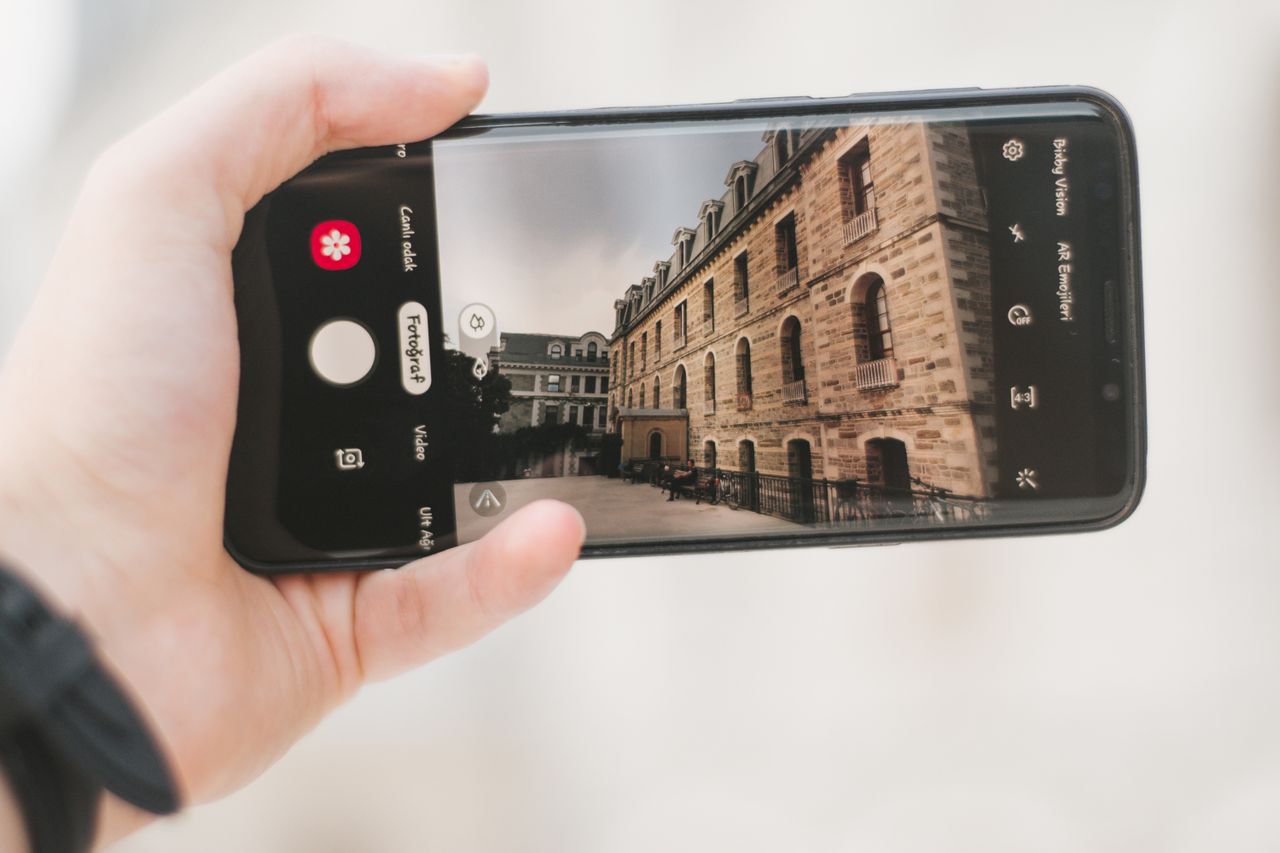
Have you ever opened an old photo from your phone and thought, “Was it always this blurry?”
The pictures can be some old photographs from your iPhone 6… or maybe an old Android phone. The images might not focus too well, but the people in them are your most precious loved ones.
The issue isn’t even just age – phone cameras never had much resolution. Years of lossy compression within messages and backups are the culprits too.
So, will modern AI help in this scenario? We will be testing AI image enhancement in a variety of settings below and seeing what has and hasn’t been improved.
The photo probably hasn’t changed much —your expectations have.
Old phones back in the day didn’t have the ability to shoot much detail, especially indoors or at night. When coupled with a decade of photo compression by text messages and cloud services— results become way too poorer. Look at the same photo on a new-age phone HD display and every round edge just look blurry now.
Like most, we didn’t go right to AI.
The easy edits seemed to make more sense first: we boosted sharpness in the native phone editor, applied a basic sharpening filter in Photoshop, and even enlarged the image in terms of pixels to a higher resolution
Guess what? We also tried cropping into faces to see if, by being closer, they might reveal more information. It didn’t.
Those results were definitely not good.
Sharpening gave the image hard edges while accentuating grain and artifacts. Increasing pixel resolution made the file size bigger but not clearer, just bigger. Cropping only underscored how much wasn’t there to begin with.
After some experimenting, it became evident that basic edits could only operate on data that was already present in the photograph.
Here is where most users give up. Perhaps it is a vintage family photo that you are printing to keep as a keepsake, a baby photo to include in a memorial video or an old favorite photo of yourself that you just can’t stop using as your profile photo.
That does not mean that the photograph cannot be restored or that you can’t achieve a better version of it. That’s what photo enhancers are for!
For this test, we didn’t cherry pick polished, easily fixable images. We sorted through an old phone backup and pulled out a real grainy image – the sort of thing that matters to real people: a blurry indoor family photo.
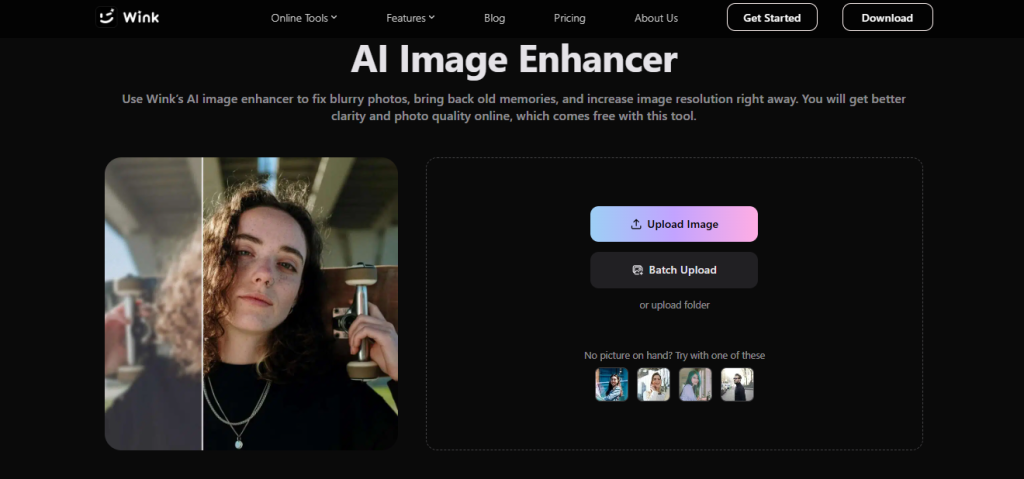
For the test, we opted for Wink AI Image Enhancer. We picked it out because Wink doesn’t just apply a heavy sharpen; it is designed to improve image quality from low-resolution photos.
There are also different modes available, like HD, Ultra HD, and Scenarios like Product Images… and most important for us: Blurry Photos.
Mostly we wanted to see if it could enhance those older, degraded photos in a more subtle, natural-looking way.
Simply upload your low-resolution or blurry image to the Wink AI Image Enhancer. Although it is possible to upload images in bulk, doing one picture at a time simplifies it.
Click “Upload Image”.
Select the mode that best matches the photo. HD and Ultra HD work well for general image enhancement, while Scenario options such as Blurry Photos (in our case).
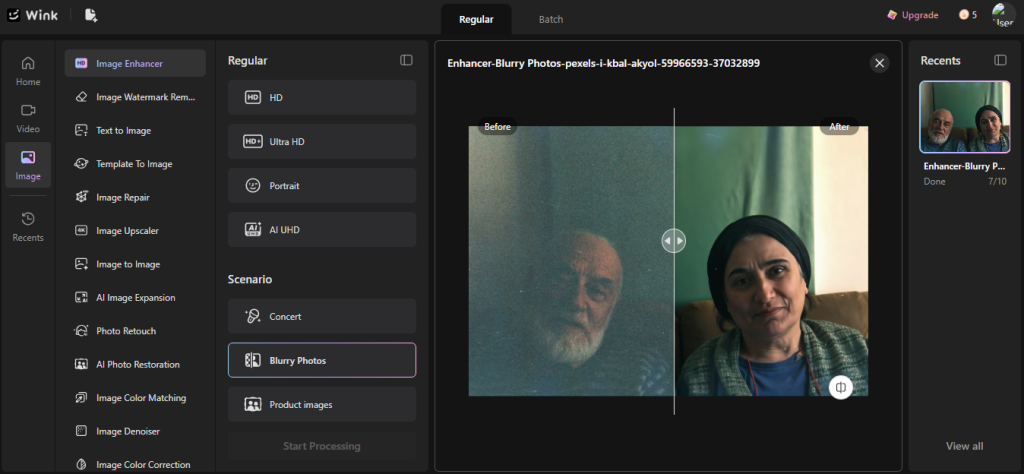
Once the AI finishes processing, compare the enhanced image with the original using the built-in preview.
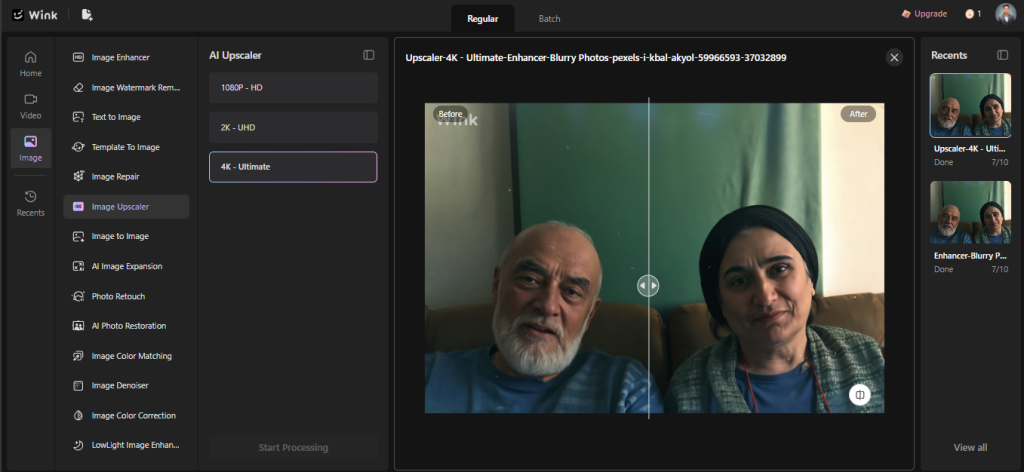
If the enhanced photo still isn’t large enough for printing, head to Wink Image Upscaler and choose an output resolution such as 1080P, 2K, or 4K.
The tool can increase the image size while helping preserve the clarity.
At first, you might not see what the tools could be doing so differently from each other. After using each of them a few times the difference became readily apparent.
| Tool | What it does | Best used when |
| Wink Image Enhancer | Improves the quality of the existing photo by reducing blur and noise, sharpening details | The photo looks soft, grainy, dark, or lacks clarity. |
| Wink Image Upscaler | Increases the image resolution to outputs like 1080P, 2K, or 4K while helping preserve image quality. | The photo is too small for printing, editing, or viewing on larger screens. |
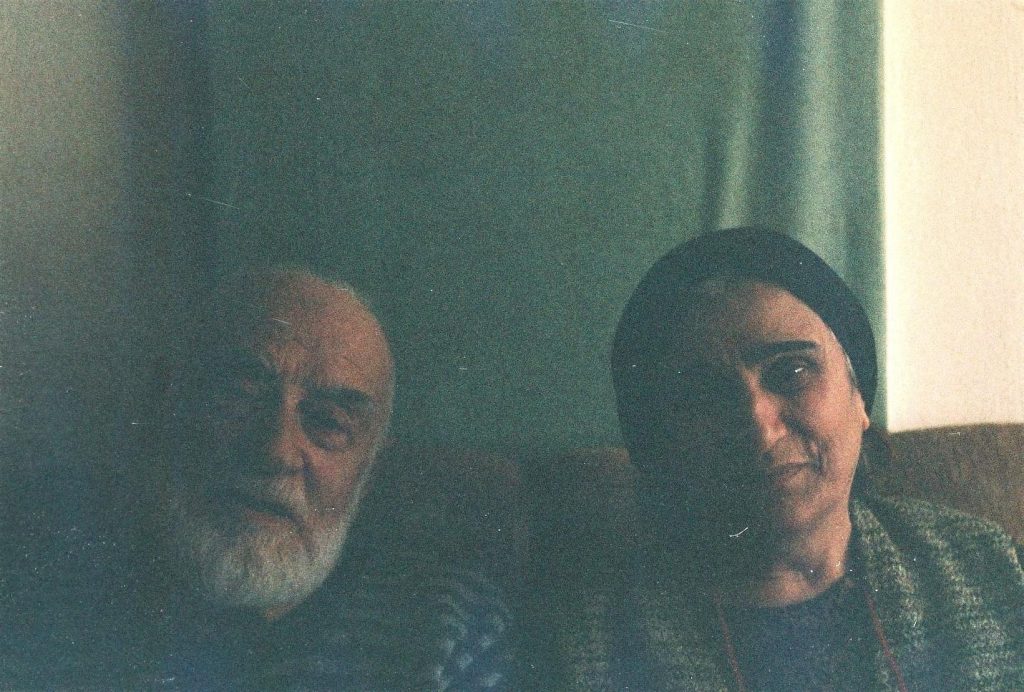
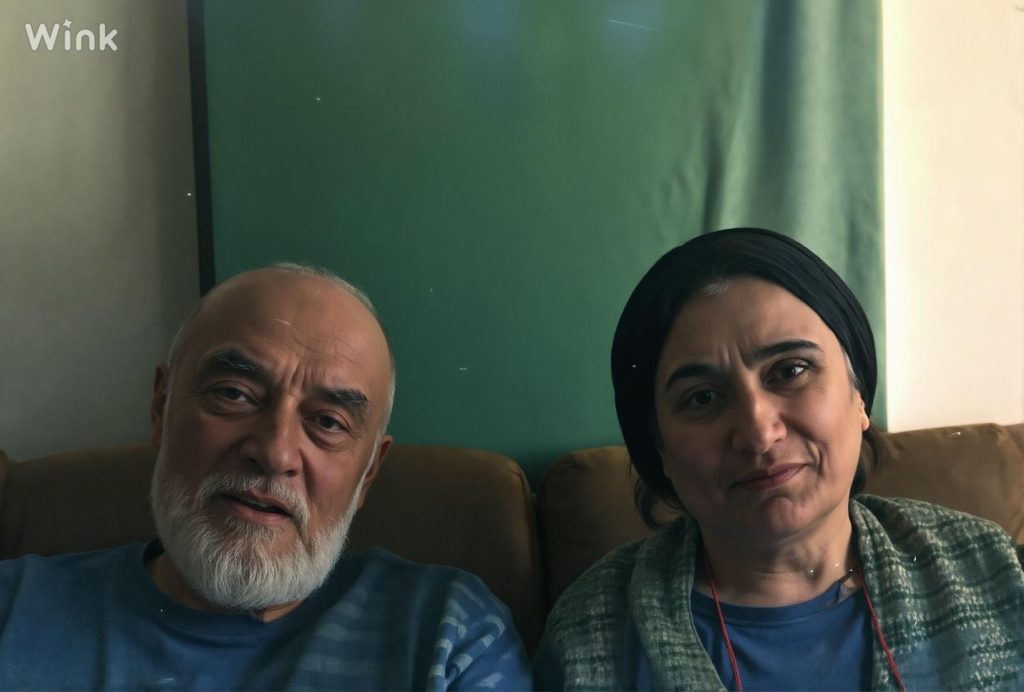
We chose an old indoor shot of an older couple as the photo for our test: just the type of photo everyone wants to avoid losing due to being out of focus.
While not actually blurry, the original had a quality familiar to anyone who has a few years of old mobile photos stored: a soft look to the faces, an overall fuzzy, grainy quality, and a complete loss of small detail once the photo was magnified a little.
The result wasn’t definitely crisp and an improvement over the original – grain seemed a lot less apparent, the faces were sharper, and the photo seemed a little more dimensional too.
Tried on some old pictures, and the answer is yes, but only to a point. You won’t get the photos taken on your old 2015 smartphone looking like they belong on a new flagship device.
However, it can remove a good number of disappointing things like graininess, softness, and a certain lack of sharpness.
| If your photo is… | Try this |
| Blurry, grainy, or soft | Image Enhancer |
| Clear enough but too small | Image Upscaler |
| Old, blurry, and low-resolution | Enhance it first, then upscale it |
Old phone photos will never look exactly like images from today’s cameras— that’s a lie! In our test above, the AI image enhancement tool i.e., Wink took noise out of old photos, brought clarity and helped us view an old family shot with a sense of pleasure once more.
If you’ve got precious photos that just don’t look their best as time passes, it’s worth trying Wink AI Image Enhancer – you might be surprised by how much life it can bring back to memories you thought were beyond saving.
The AI will not necessarily fix a blurry photo if the blur is very bad. AI can definitely get rid of blur, denoise an image, and improve old images.
Yes – but it depends on the input images. Wink AI Photo Enhancer has a good chance of making the image look cleaner even if all the details are not restored.
Many AI photo enhancers, including Wink, offer a free version, so you can try improving a few photos without paying.
You sure can! Use the photo enhancement tools like Wink to clear up blurry pictures first, and then scale the photos larger in the Wink image upscaler for bigger prints.
