Physical Address
304 North Cardinal St.
Dorchester Center, MA 02124

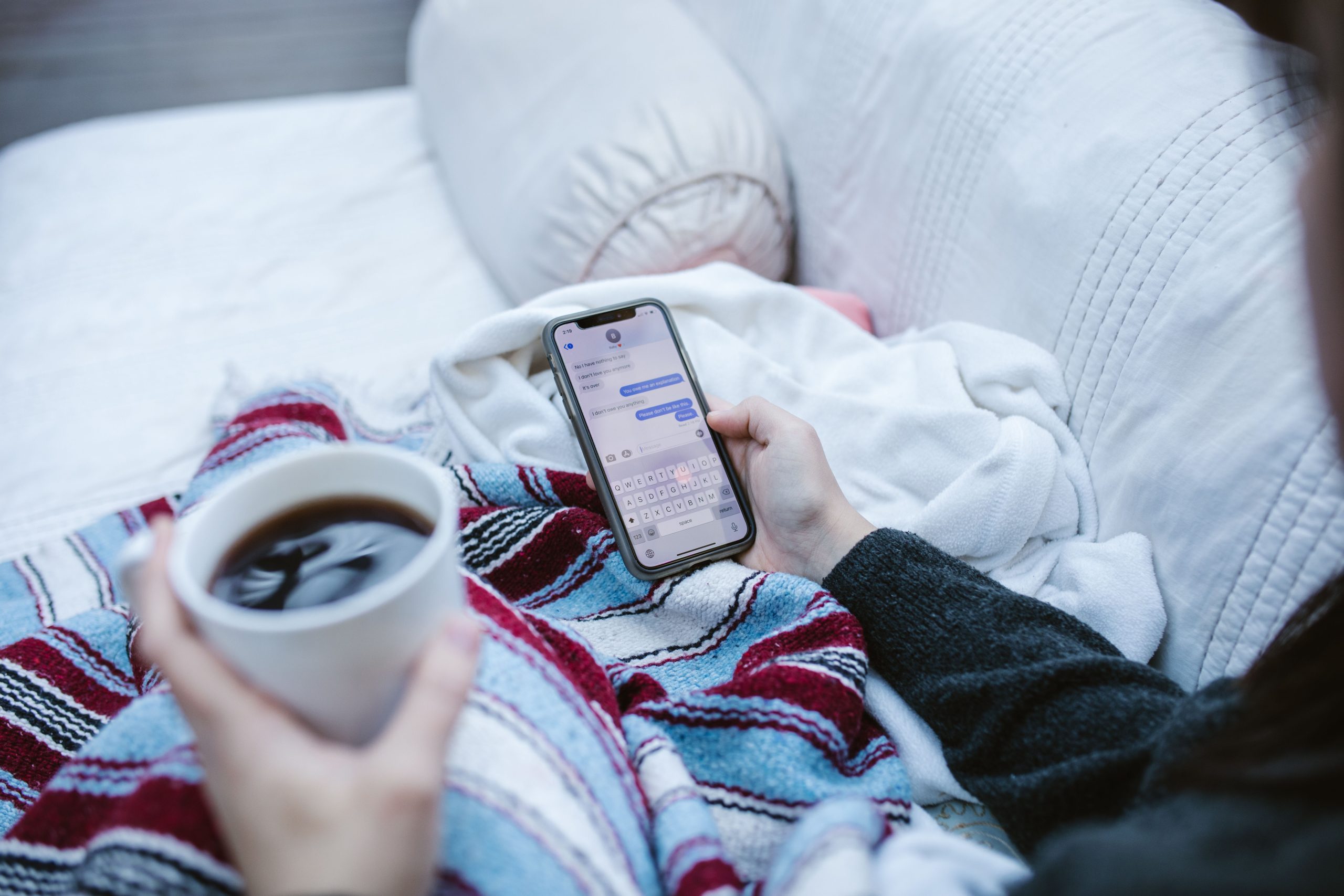
Your WhatsApp holds years of memories — birthday wishes, family group photos, important client conversations. The thought of losing all that during a phone upgrade is genuinely scary. We get it.
The good news? WhatsApp has built-in backup tools that make this straightforward. Follow the steps below exactly as written, and every single message will be waiting for you on your new phone.
Do this on your current phone before you touch the new one.
Open WhatsApp. Tap the three dots in the top right (Android) or the gear icon in the bottom right (iOS). Select Settings → Chats → Chat Backup.
Make sure you have enough Google Drive or iCloud storage. Select your preferred account, toggle “Include Videos” on, and set an automatic backup schedule (Daily is safest).
Hit the green Back Up button. Use a stable Wi-Fi connection and do this right before switching phones so no recent messages are left behind.
💡 Pro Tip: Check your cloud storage first. On Android, go to Google Drive → Storage. On iPhone, go to Settings → Your Name → iCloud → Manage Storage. Free up space if needed before starting.
Now pick up your new phone. This takes about 5 minutes.
Download WhatsApp from the Play Store or App Store. Open it, agree to terms, and verify the exact same phone number you used on your old phone.
After verification, WhatsApp will automatically find your backup. When you see the Restore button appear, tap it immediately.
⚠️ Do NOT skip this screen! You cannot merge old chats later. If you miss this prompt, you’ll need to uninstall and reinstall WhatsApp to see it again.
Your text messages will load first. Once the progress bar completes, tap Next. Your chats appear immediately — photos and videos continue downloading quietly in the background.
Yes! WhatsApp now supports cross-platform transfer using the “Move to iOS” app during iPhone setup, or Samsung Smart Switch for the reverse. Both phones must be connected to the same Wi-Fi network.
Google Drive backups for WhatsApp don’t count against your storage quota. For iCloud, you may need to upgrade to the 50GB plan (about $0.99/month) or delete old device backups to free space.
Only messages received after your most recent backup won’t transfer. That’s why we recommend doing a manual backup right before you switch — ideally within minutes of setting up the new phone.
