Physical Address
304 North Cardinal St.
Dorchester Center, MA 02124
Physical Address
304 North Cardinal St.
Dorchester Center, MA 02124

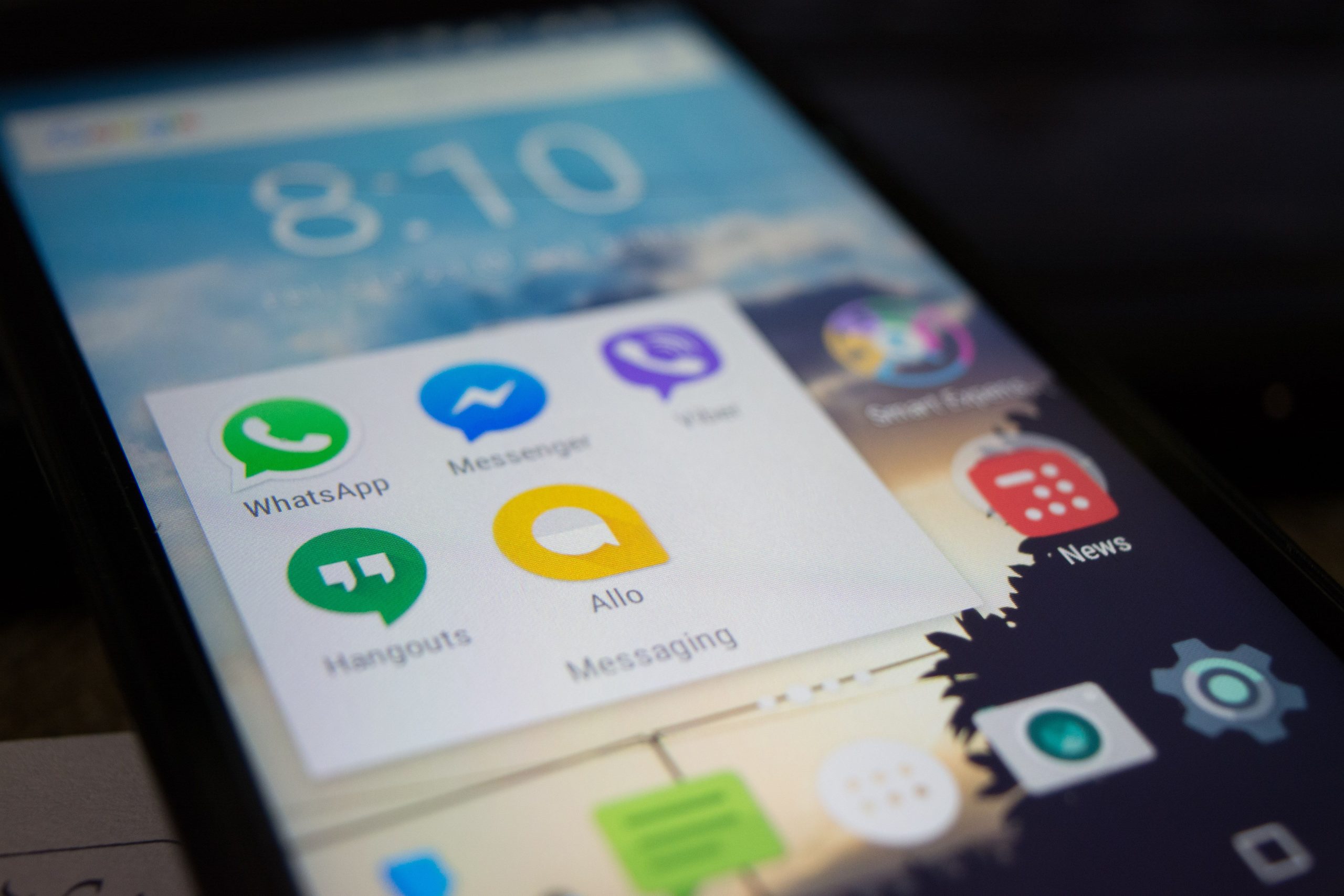
Whether you’re dealing with an overly persistent contact, spam messages, or you accidentally blocked your aunt while archiving a chat — I’ve been there. The good news: blocking on WhatsApp is quick, discreet, and completely reversible. No one gets notified, and you can undo it whenever you’re ready. Let me walk you through it.
This takes about 10 seconds. Here’s the fastest way on both iPhone and Android:

💡 Pro tip: You won’t accidentally call them by tapping their name — WhatsApp opens the info screen, not the dialer. You’re safe to navigate there.
Changed your mind? Need to reconnect? Unblocking is just as fast:
⚠️ Important: Messages they sent while blocked are lost — they won’t be delivered after you unblock. Your chat history from before the block is still there.
They can NOT send you messages or call you. Messages they send will show one checkmark (sent) on their end but never two (delivered).
Your profile photo, About info, Last Seen, and Online status become invisible to them. They’ll see a blank profile.
They will NOT receive any notification that you blocked them. WhatsApp keeps this completely discreet.
You’re removed from each other’s Status viewers. They can’t see your updates, and you won’t see theirs.
Messages you exchanged before the block remain in your chat history. However, any messages they tried to send while blocked are permanently lost — they never reach your phone, even after unblocking.
WhatsApp does NOT notify anyone when they’re blocked. However, observant users may notice clues: your Last Seen disappears, messages only show one checkmark, and they can’t see your profile photo or Status updates.
No. Once blocked, they cannot see your Status updates, profile photo, About section, or Last Seen. It’s a complete communication cutoff.
Yes! If they’ve messaged you, open that chat, tap their number at the top, scroll down and tap Block. You can also block unknown numbers directly from the chat screen when WhatsApp prompts you.
No. Blocking only affects one-on-one communication. You’ll both remain in shared group chats and can still see each other’s messages there. If you need full separation, you’ll need to exit the group.
Blocking someone on WhatsApp is a healthy, private way to manage your digital space. It’s not permanent, it’s not dramatic, and the other person won’t even know. Whether you need temporary peace or a permanent boundary, you’re in control. Take care of yourself first — that’s what the block button is for.
