Physical Address
304 North Cardinal St.
Dorchester Center, MA 02124
Physical Address
304 North Cardinal St.
Dorchester Center, MA 02124

Switched carriers or got a new SIM? Here’s the exact, in-order process to move WhatsApp to your new number while keeping every chat, photo, voice note, and group intact — and auto-notifying your contacts.
Changing your WhatsApp number sounds scarier than it is. When you follow the built-in “Change Number” tool in the right order, WhatsApp migrates your entire account — chats, media, and group memberships — to your new number, and can even message your contacts for you. The key is doing the prep first. Follow the sequence below and you won’t lose a single conversation.
Complete these four things first. This is what protects your data if anything is interrupted mid-process.
Open WhatsApp → Settings → Chats → Chat backup, and tap “Back up now.” On Android this saves to Google Drive; on iPhone it saves to iCloud. Wait for it to finish completely. A fresh backup means that even in the unlikely event something goes wrong, every message and photo can be restored — so you can proceed with total peace of mind.
Tip: Note the backup’s date and size on the screen. If it matches your recent activity, you’re fully protected.
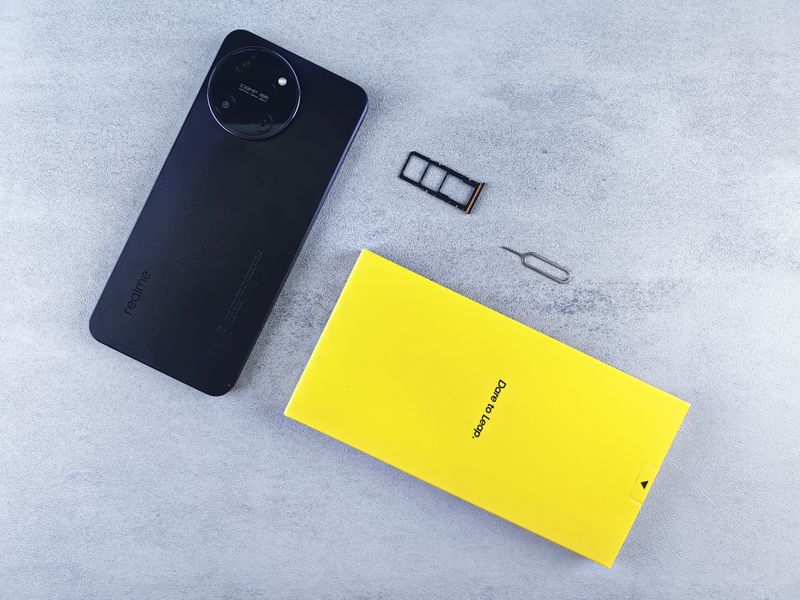
You do NOT need to swap SIMs before changing the number in the app — WhatsApp verifies via a code, not the physical SIM. If your new SIM is already in the phone, that’s fine. If you want to receive the verification code on the new number, insert the new SIM now and make sure it has signal.
Go to Settings → Account → Change Number, then tap Next. This is the only correct way to switch — never delete and reinstall the app, as that risks your history and group spots.
Type your current (old) number in the top field and your new number in the bottom field, each with the correct country code. Double-check the digits, then tap Next. WhatsApp uses this to migrate your account across.
You’ll be asked to notify your contacts. Choose “All contacts,” “Contacts I have chats with,” or “Custom.” Confirm, then enter the 6-digit verification code sent to your new number. Once verified, your account — chats, media, and groups — is now on the new number.
Using Change Number keeps all conversations, media, and voice notes exactly as they were — nothing is deleted.
Your membership and admin roles carry over automatically. No re-invites needed for any group or networking directory.
The “notify contacts” option means you never have to manually text hundreds of people. WhatsApp sends an automatic message so clients and friends know your new number — no more worrying they’ll message the old one and think you’re ignoring them.
No. As long as you use Settings → Account → Change Number (instead of reinstalling), your entire chat history, media, and voice notes move to the new number automatically. Back up first as an extra safety net.
No. Your group memberships and any admin roles transfer with your account. You won’t need to be re-invited to any group or networking directory.
Either works, but the simplest path is: back up, insert the new SIM so you can receive the verification code, then use the Change Number tool in the app. WhatsApp verifies with a code sent by SMS, so the new SIM just needs to receive that message.
During the process WhatsApp offers to notify your contacts automatically. Choose all contacts or only those you chat with, and it sends the update for you — no manual texting required.
Yes — and you should. Never uninstall to change numbers. The built-in Change Number feature does everything safely while keeping your data and groups in place.
You can still change the number as long as you can access the WhatsApp account on your device. Enter your old number where prompted even if the SIM is inactive — verification happens on the NEW number you’re switching to.
