Physical Address
304 North Cardinal St.
Dorchester Center, MA 02124
Physical Address
304 North Cardinal St.
Dorchester Center, MA 02124

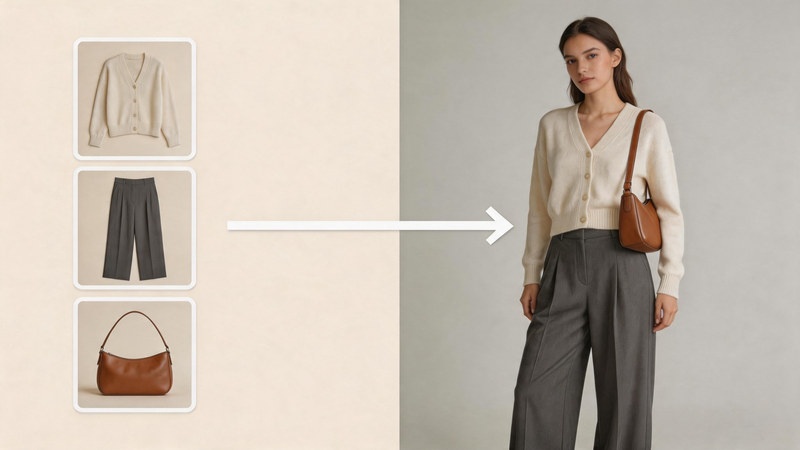
You have three separate assets: a headshot, a product flat lay, and a background plate you like. A single text-to-image session cannot reliably lock the model to all three at once. Vheer’s Multi Images to Image tool is built for that exact problem: you upload multiple references, assign roles with clear instructions (including @ tags), and generate a new composite that follows your creative direction without a full Photoshop session.
Vheer’s Multi Images to Image is an AI image generator that takes at least two reference images and produces a new image that blends them according to your prompt. You keep control of composition and style by choosing a model, aspect ratio, and optional “Think” prompt optimization, then you describe how each reference should contribute. The workflow fits marketing teams, e-commerce artists, and social creators who already have partial assets and need a single, publishable frame.
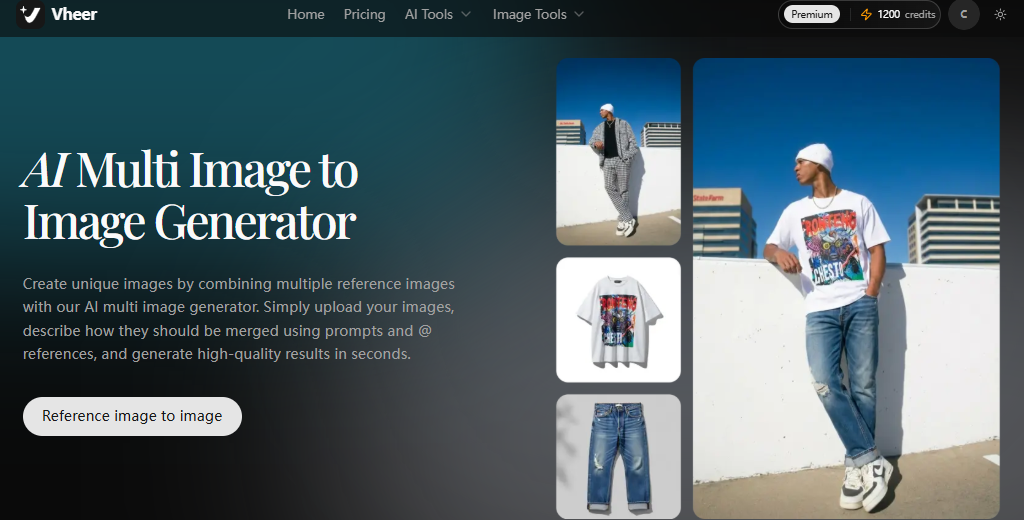
Key features
Best for: e-commerce mix-and-match shots, character + outfit + style direction, and campaign visuals where one reference alone is not enough.
Step 1: Open the Multi Images to Image tool
Go to the Vheer AI Multi Images to Image page and choose Multi Images to Image from the left navigation. In the workspace you can upload references and adjust generation settings.
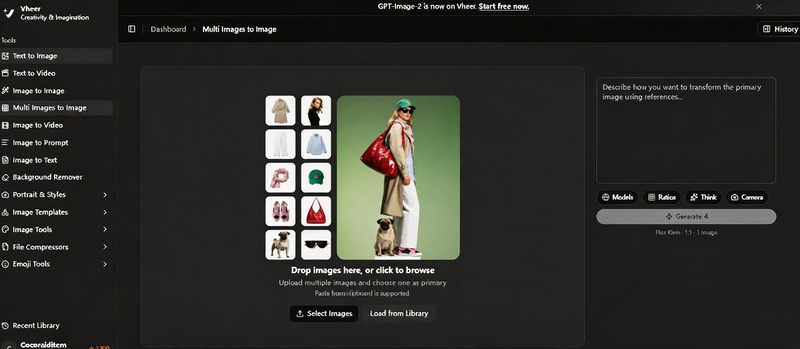
Step 2: Upload your reference images
Use Select Images to upload from your device, or Load from Library to import past Vheer creations. If you have no library history yet, use Select Images. You must upload at least two reference images to run this tool.
Step 3: Customize image generation settings
Pick an AI model from the supported list (such as Flux Klein, GPT Image 2, or Nano Banana Pro). Set the aspect ratio that matches your deliverable (1:1, 2:3, 9:16, 16:9, or other options). Optionally enable Think Mode so your prompt can be optimized automatically before generation.
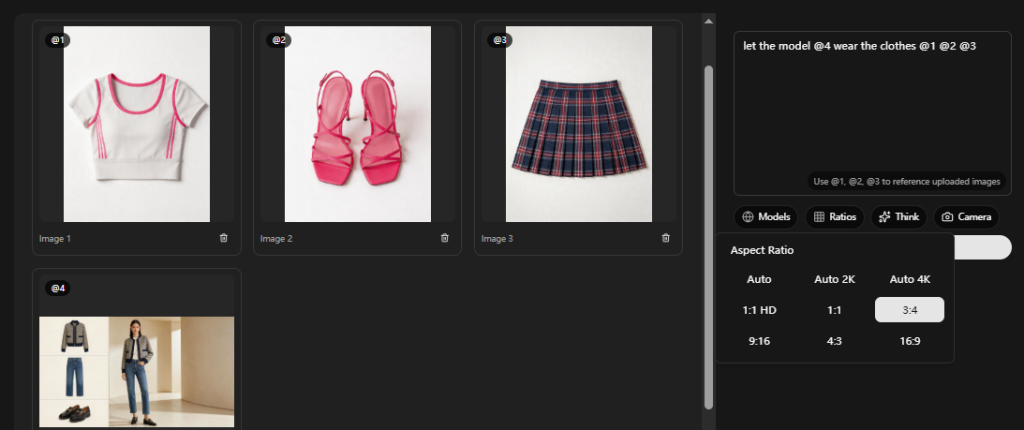
Step 4: Describe how the images should combine
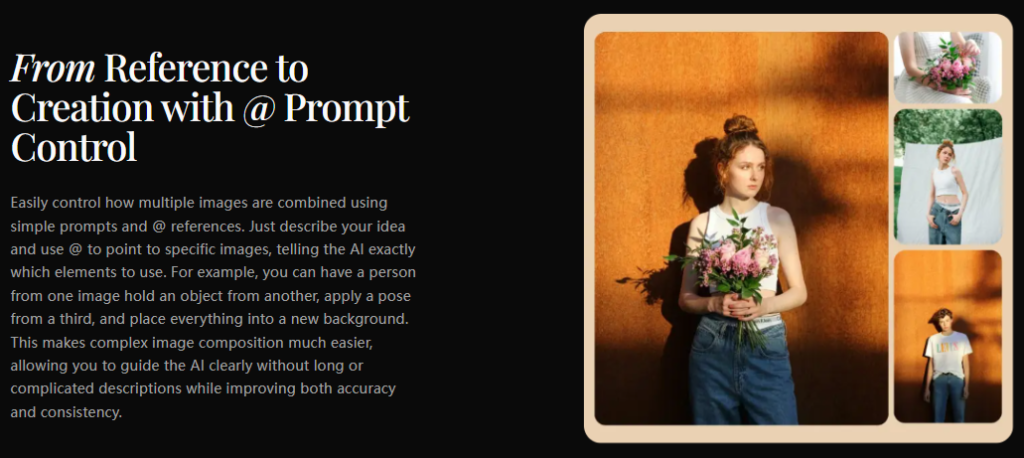
Write a prompt that explains how references interact. Use @ tagging when you need precision, for example: “Let the person in @image1 wear the dress from @image2 while using the art style from @image3.” That pattern reduces ambiguity when multiple images compete for attention.
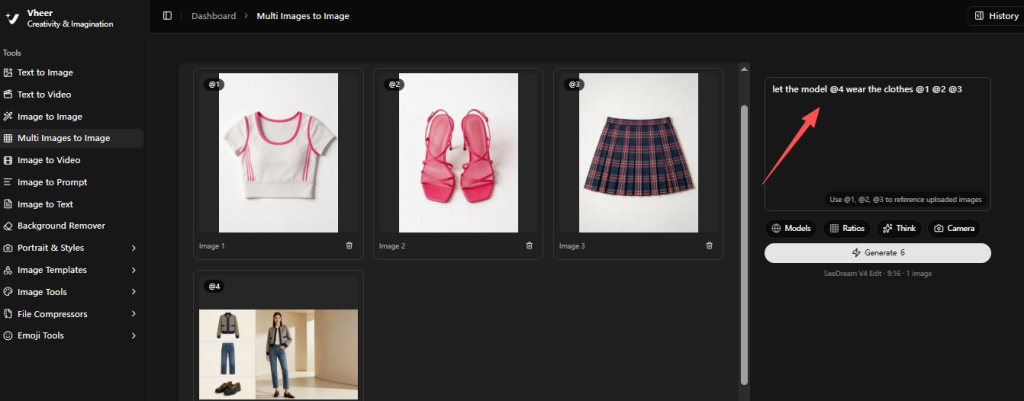
Step 5: Generate your new image
Click Generate. Vheer runs your chosen model to fuse references with coherent composition and blending. Afterward you can preview online, download a high-quality file, or iterate with new prompts and references.
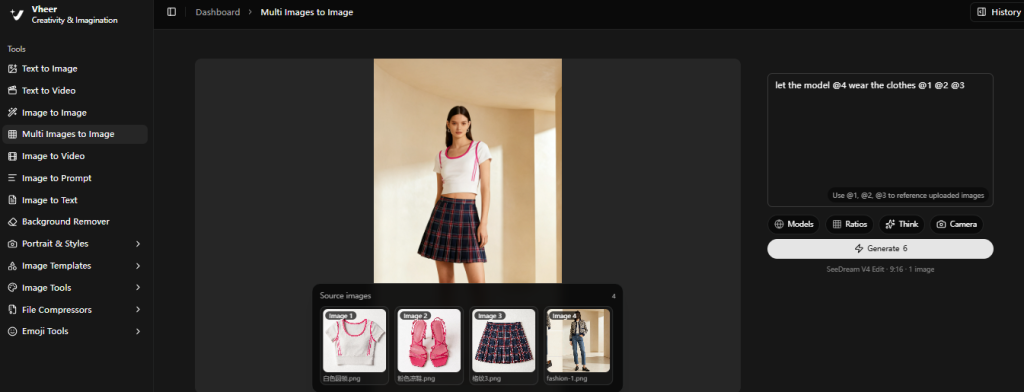
Case 1 — Outfit swap for a catalog hero shot
You have a model photo (@image1) and a garment shot (@image2). Goal: one hero image that looks like the model is wearing that garment under studio lighting.
Prompt:
Studio catalog lighting. Keep the identity and pose from @image1. Replace clothing with the exact garment from @image2: match neckline, sleeves, and fabric drape. Neutral gray backdrop, soft shadows, ecommerce-ready sharpness.
Case 2 — Brand palette + product + lifestyle scene
You have a packaging reference (@image1), a lifestyle plate (@image2), and a palette swatch or mood frame (@image3). Goal: a single social ad that respects brand colors and scene energy.
Prompt:
Create one cohesive advertisement composition. Use product silhouette and label hierarchy from @image1. Match lighting mood and setting camera angle from @image2. Restrict color grading to the palette implied by @image3; avoid introducing unrelated hues. Leave readable headline-safe negative space top third.
Case 3 — Style transfer while preserving subject identity
You have a character or portrait (@image1) and a style reference (@image2)—for example ink outlines or watercolor texture. Goal: same subject recognition with new illustrative treatment.
Prompt:
Preserve facial structure and identity from @image1. Apply only the rendering technique from @image2 (line weight, texture, brush behavior). Do not change gender, age, or facial proportions. Full-body framing if @image1 shows full body; otherwise keep crop consistent.
Faster alignment than manual masking. When your references already encode decisions—what the product looks like, what the lighting should feel like—you spend fewer rounds arguing with the model about invisible constraints. The multi-reference plus @ tagging pattern turns those assets into explicit instructions instead of hoping the prompt alone will carry them.
Cleaner creative briefs inside one canvas. Instead of tracking five conflicting directions across chat threads, you anchor each requirement to an image slot. That discipline matters when stakeholders disagree; the references become shared ground while the prompt explains how they combine.
Sharper iteration after the first render. Because Vheer can generate an image from references and let you download results and continue with adjusted prompts or swapped references, you treat generation like a staged composite pipeline rather than a lottery on a single thumbnail.
Better ratio discipline for real placements. Choosing aspect ratio before generation means you are not constantly reframing a square concept for stories, product pages, and display ads. You pick the output frame that the channel already demands.
Tighten one role per reference. If every image tries to control the same attribute, the model has to guess priority; assign hair to one file, wardrobe to another, and environment to a third when that is the real problem you are solving. When Think Mode is available and your prompt is long, turn it on for a pass, then trim the result so you still recognize your own brief. If the model overfits one reference, reduce its visual dominance by lowering its unique details in the prompt or swapping a busier image for a simpler plate.
Image generation from references works best when you treat each upload as a contract: one file carries identity, another carries wardrobe or product truth, a third carries mood or palette. Spell out those roles in plain language, use @ tags when the model could confuse two sources, and pick the aspect ratio before you fall in love with a square comp you cannot ship. The workflow above is repeatable—open the tool, load at least two references, set model and ratio, write a tight combination prompt, generate, then refine. When you are ready to try the same structure on your own assets, start from the Vheer workspace below and adjust one variable at a time so you know what changed between renders.
