Physical Address
304 North Cardinal St.
Dorchester Center, MA 02124
Physical Address
304 North Cardinal St.
Dorchester Center, MA 02124


Quick Answer
Open the Microsoft Store on your Windows PC, search for WhatsApp, and click Get to install the free official app. Launch it, then on your phone go to Settings → Linked Devices → Link a Device and scan the QR code shown on your PC. Thanks to multi-device support, your PC stays connected even when your phone is offline.
Only ever download WhatsApp for Windows from the Microsoft Store or the official WhatsApp website. This guarantees you get a genuine, virus-free, always-up-to-date app — never trust random “download” pop-ups or third-party sites.
How to check it’s genuine: the listing should be published by “WhatsApp Inc.” with the official green logo. If a site asks you to pay or install extra “helper” software, close it immediately.
Both link to the same account and show the same chats. For a Windows PC you use daily, the installed Desktop App is the better choice — WhatsApp Web is handy only for quick or borrowed-computer access.
Best for: Your own Windows PC & daily heavy use
Pros: Supports video and audio calls with your webcam and headset, faster performance, native Windows notifications, and drag-and-drop file sharing straight from your desktop.
Cons: Requires a one-time download and install from the Microsoft Store.
Best for: A borrowed or shared computer
Pros: Nothing to install — just open web.whatsapp.com in Edge or Chrome and scan. Perfect for quick, temporary access.
Cons: No video or audio calling, and it lives inside a browser tab that is easy to lose.
The whole setup takes under two minutes and you only do it once per PC.
Click the Start menu, type “Microsoft Store”, and open it. In the search bar, type “WhatsApp” and select the official app published by WhatsApp Inc.
Press the Get (or Install) button. Windows downloads and installs WhatsApp automatically. When it’s ready, click Open to launch the app — a QR code will appear.
On your iPhone or Android, open WhatsApp, tap Settings (or the three-dot menu), then Linked Devices, then Link a Device.
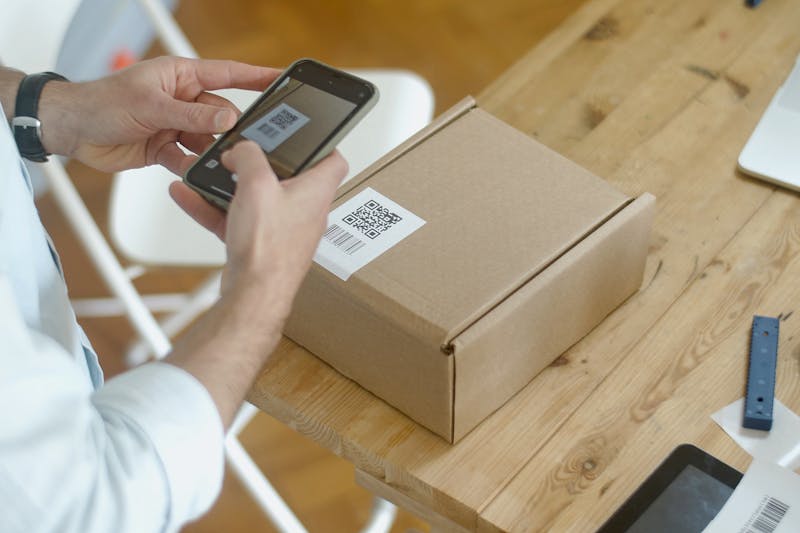
Point your phone’s camera at the QR code on your PC screen and authenticate if prompted. Your chats sync instantly — and your PC stays connected even when your phone is off or out of range.
The menu path differs slightly between iOS and Android — here is exactly where to tap.
Settings tab (bottom-right) → Linked Devices → Link a Device
Three-dot menu (top-right) → Linked Devices → Link a Device
Press Ctrl + N to start a new chat, Ctrl + F to search within a conversation, and Ctrl + Shift + ] to jump to the next chat.
Skip transferring to your phone — drag a PDF, screenshot, or document straight from your Windows desktop into a chat window to send it instantly.
Open Settings → Notifications in the desktop app to silence Windows pop-ups while you focus, then turn them back on when you’re done.
Right-click the WhatsApp icon in your taskbar and choose “Pin to taskbar” so it launches with one click every time you sit down to work.
Yes — but only with the installed WhatsApp desktop app, not WhatsApp Web. Once installed, you can make and receive one-to-one and group video and voice calls using your PC’s built-in or external webcam and headset. Grant camera and microphone permission the first time you call, and you’re ready for crisp, hands-free meetings.
Yes. WhatsApp for Windows is completely free and safe as long as you download it from the official Microsoft Store or the WhatsApp website. Avoid third-party download sites, which may bundle malware.
The native WhatsApp desktop app runs on Windows 10 (64-bit, version 1903 or later) and Windows 11. If your PC is older, you can still use WhatsApp Web in any modern browser.
No. With multi-device support, your PC keeps receiving messages even when your phone is offline or out of battery. You only need your phone online for the initial QR-code linking.
You can link up to four additional devices — such as a Windows PC, a second laptop, or a tablet — to a single phone number at the same time.
In the desktop app go to Settings → Linked Devices and click Log Out, or remove it from your phone via Settings → Linked Devices → tap the PC → Log Out. This is useful for borrowed or public computers.
