Physical Address
304 North Cardinal St.
Dorchester Center, MA 02124
Physical Address
304 North Cardinal St.
Dorchester Center, MA 02124

⚡ Quick Answer: You have two options. 1) WhatsApp Web — open web.whatsapp.com in any browser, scan the QR code with your phone, done. No download needed. 2) WhatsApp Desktop App — download it free from the Microsoft Store (Windows) or Mac App Store (Mac), then scan the QR code. Both methods take under 2 minutes.
If you spend 6-10 hours daily on your computer for work or study, constantly reaching for your phone to reply to WhatsApp messages is killing your productivity. Every time you pick up that phone, you lose focus — and research shows it takes an average of 23 minutes to fully regain concentration after a distraction.
The good news? WhatsApp officially supports PC and laptop usage. You can type messages with your full keyboard, view photos on a large screen, and receive notifications without touching your phone. Below, I’ll walk you through every method — step by step, with clear instructions that anyone can follow.
This is the fastest option. WhatsApp Web runs entirely in your browser — Chrome, Firefox, Edge, or Safari. You don’t need to install anything. It’s perfect if you’re on a shared computer or simply want to start chatting immediately.
That’s it — five steps, no downloads, no sign-ups. Your messages now appear on both your phone and your computer simultaneously. You can type with your full keyboard and send files directly from your PC.
If you want WhatsApp to run as a proper application on your PC — with background notifications, a taskbar icon, and no need to keep a browser tab open — download the official desktop app. It’s free and takes about 1 minute to install.
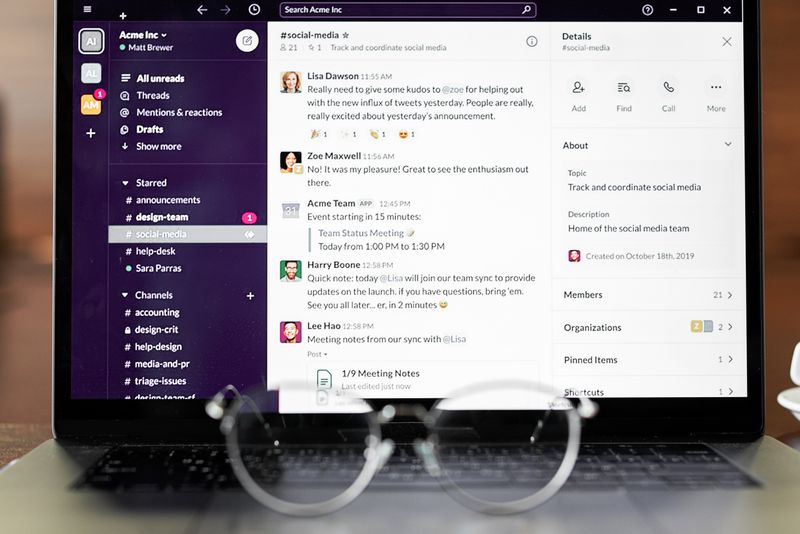
The desktop app starts automatically when you turn on your computer, so you’ll never miss a notification — even if your browser is closed. This is the recommended option for Pervez-type users who work on their PC all day.
Mac users follow a similar process, but you’ll use the Mac App Store instead of the Microsoft Store.
This is the step where most people get confused — especially if you’re not very technical. Don’t worry, it’s actually very simple. Here’s exactly what to do:
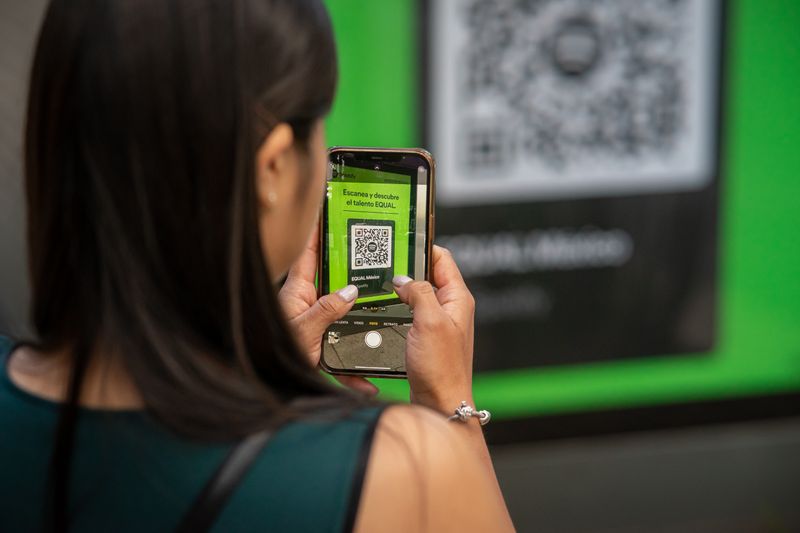
⚠️ Safety Note: Only scan QR codes from web.whatsapp.com or the official WhatsApp app. NEVER scan a QR code someone sends you in a message or email — that could be a scam to access your account.
Once WhatsApp is running on your PC, you’ll want to make sure notifications pop up even when you’re working in other apps. Here’s how to ensure you never miss a work message:
💡 Productivity Tip: Use WhatsApp’s “Mute” feature on noisy group chats, but keep important work conversations unmuted. This way you only get notifications that actually matter during your work session.
WhatsApp Web is best if you want zero installation, you’re on a shared or office computer, or you just need quick access for a few minutes. It runs in a browser tab and requires no downloads. The downside: if you close the tab, you won’t get notifications.
The Desktop App is best if you use WhatsApp heavily for work and want it running in the background all day with automatic notifications. It starts when your computer starts, lives in your taskbar, and doesn’t need a browser tab. For daily professional use, this is the better choice.
There are fake WhatsApp apps and websites that can install viruses on your computer. Protect yourself by following these rules:
Yes! Since 2022, WhatsApp supports multi-device linking. Once you scan the QR code, your PC stays connected independently — even if your phone is off, has no internet, or the battery dies. You can use up to 4 linked devices at the same time.
Absolutely free — both WhatsApp Web and the Desktop App cost nothing to download or use. If any website asks you to pay for WhatsApp on PC, it is a scam. Close that page immediately.
Yes, they could see your messages. Always log out after using a shared computer: click the three dots in WhatsApp Web → “Log out.” You can also remotely log out from your phone: open WhatsApp → Linked Devices → tap the device → “Log out.”
The latest WhatsApp Desktop requires Windows 10 or newer. If you have Windows 7 or 8, use WhatsApp Web in your browser instead — it works on any operating system as long as your browser is up to date.
Yes! The WhatsApp Desktop App supports both voice and video calls. However, WhatsApp Web (browser version) does NOT support calls. If you need calling, install the desktop app.
No. With multi-device support, your phone doesn’t need to stay active or connected for WhatsApp PC to work. Your phone battery usage stays exactly the same as before linking.
That’s everything you need. Whether you chose WhatsApp Web for instant access or the Desktop App for all-day background notifications, you can now reply to messages at full typing speed without ever picking up your phone. Your workflow stays uninterrupted, your eyes don’t strain on a tiny screen, and your phone battery gets a break.
Bookmark this page in case you need to set it up on a new computer later, or share it with a family member who could use a larger screen for their WhatsApp chats. Happy messaging!
