Physical Address
304 North Cardinal St.
Dorchester Center, MA 02124
Physical Address
304 North Cardinal St.
Dorchester Center, MA 02124

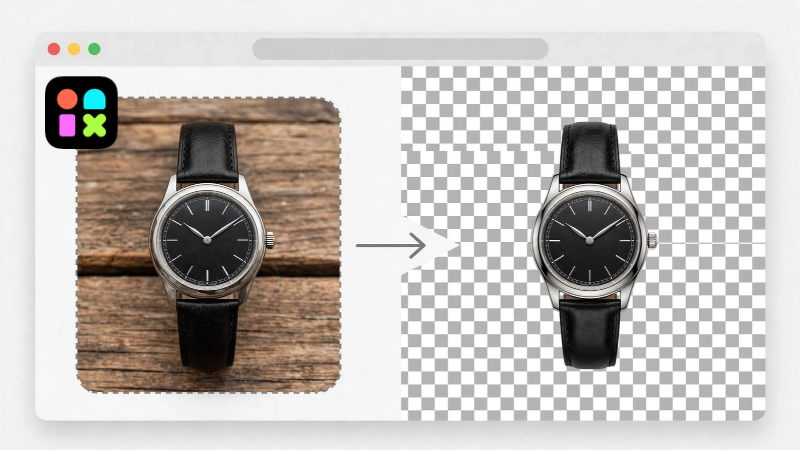
You don’t need Photoshop to get a clean transparent background anymore. Not for a product photo, not for a headshot, not for a logo mockup.
Photoshop is still amazing if you’re doing heavy retouching or complex compositing, but if all you really want is just “put this person or product on a transparent background,” there’s a much faster way to do it right in your browser — no need to learn layers, masks, or the pen tool.
Here is the no-Photoshop workflow most teams and sellers actually use when they just need a clean, marketplace-ready cutout:
A transparent PNG that works in Figma, Shopify, Etsy, Amazon, Canva, PowerPoint, Instagram stories, anywhere. Full resolution, no white box around it, edges clean enough to zoom in.
You have a few options:
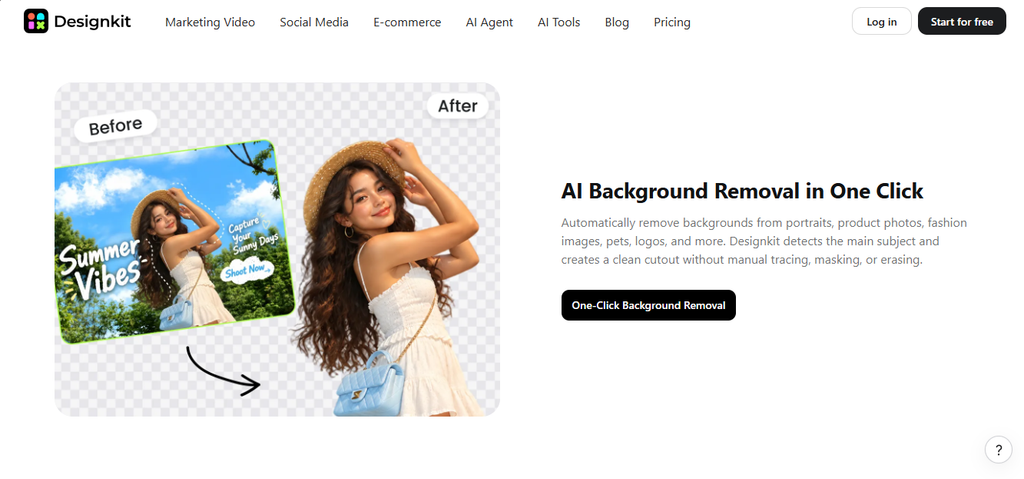
For this tutorial, we’re using Designkit — it keeps the drag-drop-download flow and does not downscale your image. It is a web-based tool, nothing to install. Open its free background remover page to follow along.
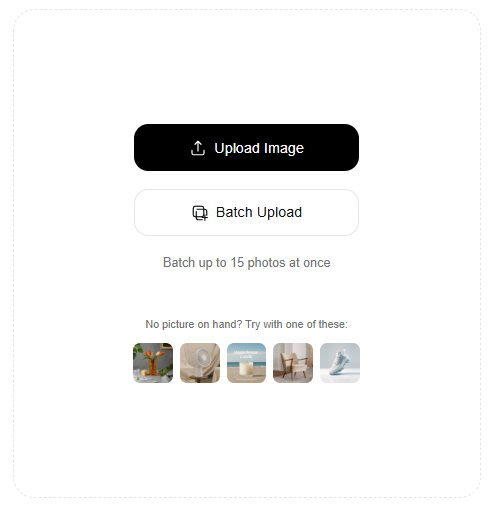
You can drag and drop images or click to upload them from your PC. The tool takes JPG, PNG, WEBP, and HEIC – all common formats. You can upload 1 image or up to 15 at once. If you have a folder of product photos, drag the whole folder.
Tip: Don’t start with a perfect studio shot to test. Start with your hardest photo – the one with frizzy hair, a black bag on a dark floor, or a white shoe with thin laces. If that passes, everything else will.
The tool will process automatically. No need to click “Remove Background.” For a single headshot it will take about 2-3 seconds. For 15 images, about half a minute.
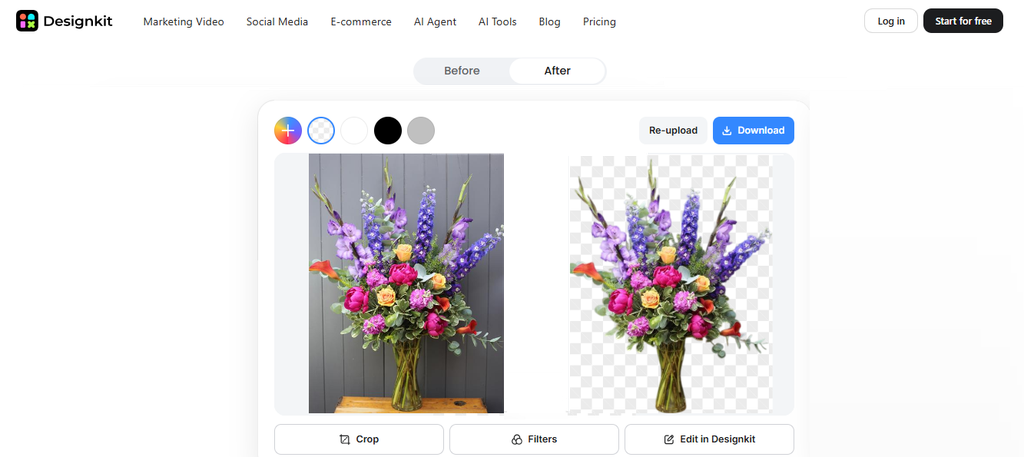
Once your image is processed, you will see the preview. On Designkit, you get a full-res preview right away, before you even log in. That matters because a lot of tools show you a blurry 500px preview that looks clean, then you download and see the halo.
If you see a tiny spot left – like a grey chunk between fingers or inside a bag handle – there is an Erase / Restore brush right on the result page. Paint over the spot to fix it without opening Photoshop. Takes 10 seconds.
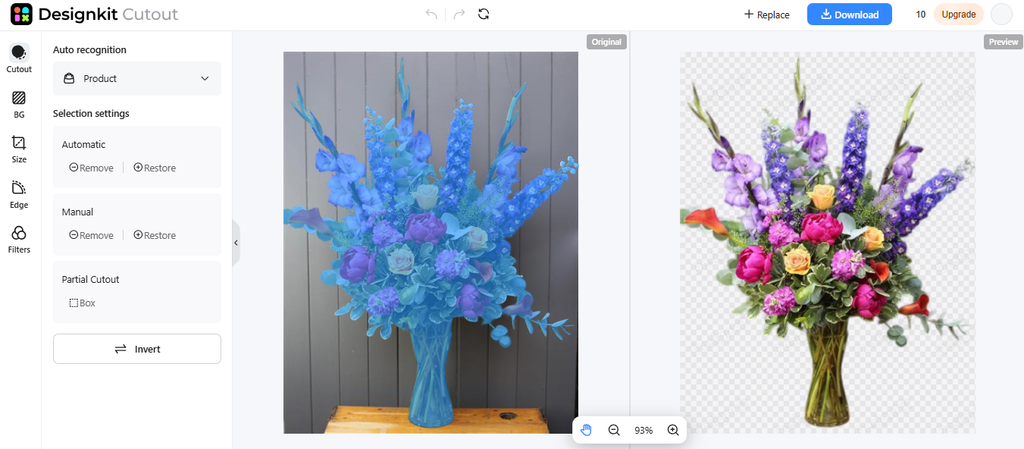
You don’t always need a transparent background. Sometimes you need white for Amazon, or a solid color for a listing. After the cutout, you have options:
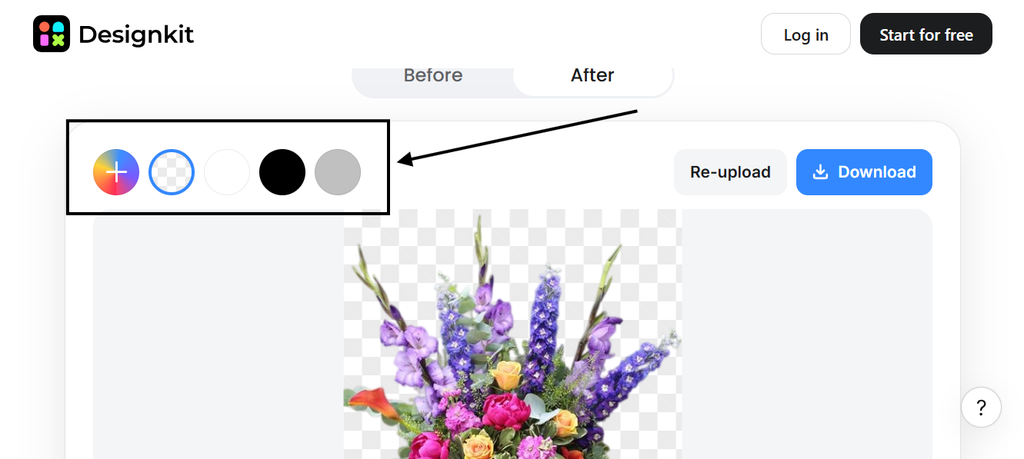
Pick Transparent if you want maximum flexibility. You can always add a white background later, but you can’t make a white background transparent again without re-cutting.
Hit Download for one image, or Download All for a ZIP if you uploaded a batch. The file keeps your original filename – so IMG_1234.jpg becomes IMG_1234.png – which helps when you have 50 SKUs.
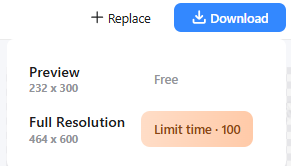
What you upload in resolution is what you get back. No forced downscaling to push you to paid. Free tier allows up to 100 full-res exports per day with no watermark.
The PNG works straight away in:
No need to save as PSD or do extra export steps.
If you have a product catalog, this is where you save the most time.
Instead of doing one by one, drag 15 images, wait for them to process in parallel, do a quick scroll to check edges, then Download All. A 30-image folder takes about 6-7 minutes total.
A lot of sellers do this: Day 1 photos -> drag to Designkit -> ZIP of transparent PNGs -> straight to Shopify. No Photoshop in between.
If you need this daily, bookmark the tool. Most teams that left remove.bg after the Canva move kept Designkit as the raw cutout step, and use Canva or Photoshop only for final design.
The quality of your original photo still matters. You don’t need a studio, but shooting against a plain wall, table, or floor gives the tool a cleaner starting point. It can handle plenty of clutter, but harsh shadows right under the product are tricky — parts of them can stick around even after removal.
Glass products need a bit more care. Those reflections and highlights are what make a bottle or glass look transparent and real. If you remove every trace, it can end up looking flat and fake. So always check the cutout at full resolution before erasing more.
And check logos up close. If edges look soft after removal, look at the transparent PNG at its original size first before you resize it. Thin lines and small lettering can lose sharpness quickly when you scale down.
You don’t need Photoshop to remove a background:
A simple cutout can take only a few seconds, but if you’re uploading a whole batch of products, expect a few minutes to run through and check everything. Photoshop still has its place for detailed edits — like glass or flyaway hair. But for daily cutouts, a browser-based tool gets it done fast, with no need to learn masks or complex editing.
