Physical Address
304 North Cardinal St.
Dorchester Center, MA 02124
Physical Address
304 North Cardinal St.
Dorchester Center, MA 02124

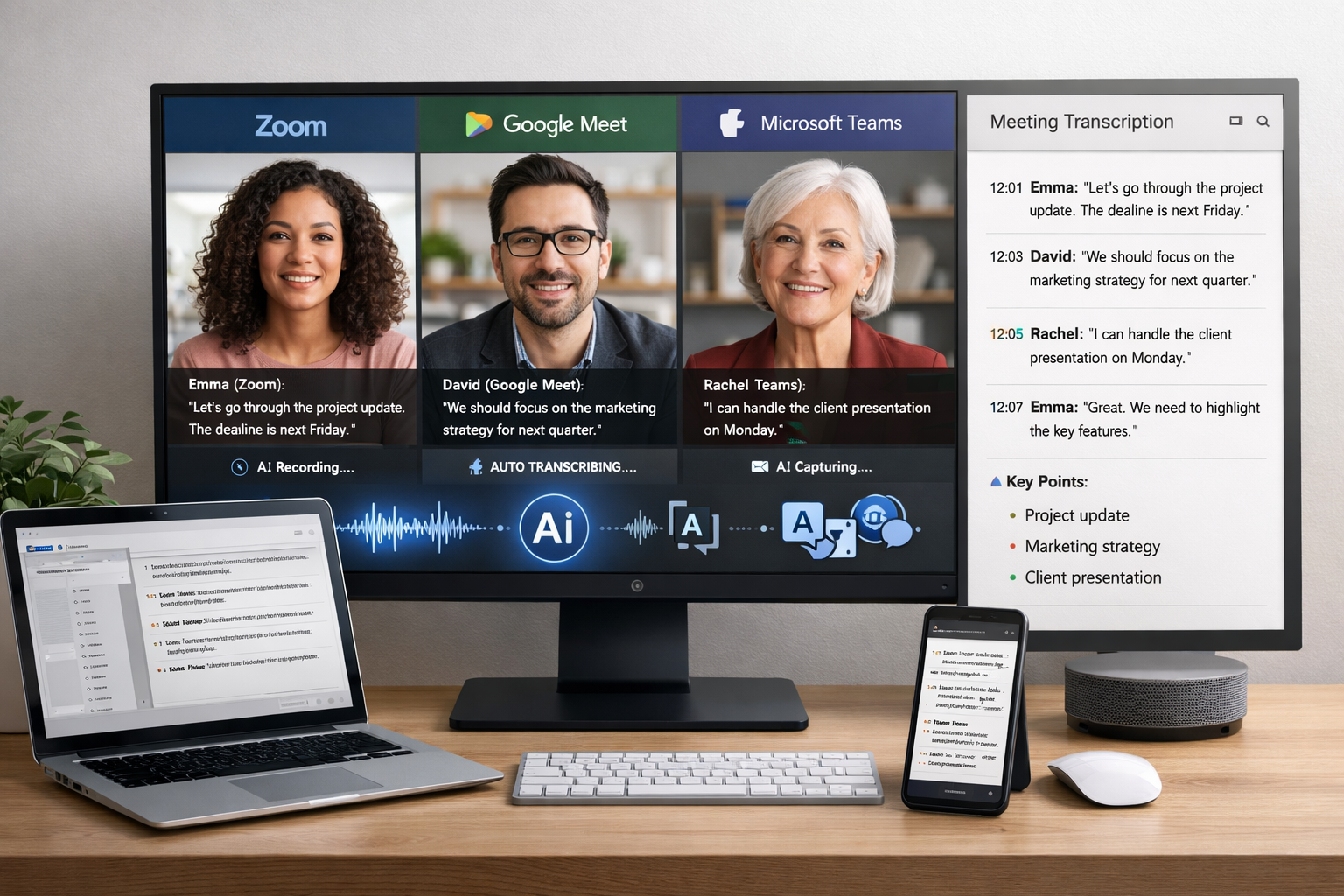
Transcribing Zoom, Google Meet, and Microsoft Teams calls automatically is now built into all three platforms through their native recording and transcription features. Once you enable transcription, each tool generates a text version of the meeting either during or after the call, which can be used for notes, summaries, and search.
This guide explains how to turn on automatic transcription in Zoom, Google Meet, and Teams step by step, and highlights the key limitations of each platform when it comes to accuracy, language support, and cross-platform workflows. It also briefly covers what to consider if you need more advanced or multilingual transcription capabilities beyond native tools.
Manual note-taking reduces meeting accuracy, slows down workflows, and creates gaps in how information is captured and shared across teams.
Automated live transcription solves these issues by creating a complete, searchable record of every meeting without interrupting the conversation. This is why using an AI transcription tool has become a standard part of team workflows rather than an optional add-on.
Zoom automatically transcribes calls using cloud recording and AI Companion. Once enabled, it generates a transcript after the meeting and can also provide live captions and summaries during the call.
Steps to enable automatic transcription in Zoom:
Once enabled, Zoom automatically generates a transcript for every cloud-recorded meeting. You can access it from the recording in your Zoom account. Cloud recording requires a paid plan. AI Companion features are included in most paid tiers, but advanced summaries may depend on your plan.
Limitations
Google Meet transcribes calls using its built-in transcript feature and Gemini-powered notes. Once enabled, it generates a transcript during the meeting and saves it automatically after the call.
Steps to enable transcription in Google Meet:
Once the meeting ends, the transcript and notes are saved to the organizer’s Google Drive and linked to the Google Calendar event. Transcription requires a Google Workspace Business Standard plan or higher. Gemini notes require an AI-enabled Workspace plan or add-on.
Limitations
Microsoft Teams transcribes calls using its built-in transcription feature. Once enabled, it generates a live transcript during the meeting and saves it after the call.
Steps to enable transcription in Microsoft Teams:
The transcript runs during the meeting and is saved automatically. You can access it later from the meeting chat or recording. Advanced summaries and notes require Teams Premium or Copilot.
Limitations
The Common Gap Across All Three Native Tools
Zoom, Google Meet, and Microsoft Teams transcription works well for simple, single-language meetings within one ecosystem, but limitations appear quickly in real-world use. Accuracy drops with accents and mixed-language conversations, real-time translation is limited, and transcripts stay locked inside each platform. As a result, teams using multiple tools end up with fragmented records and no unified way to search or reuse meeting insights.
A good third-party transcription tool should work across platforms, handle multiple languages accurately, and make transcripts easy to search, share, and integrate into your existing workflows.
When evaluating options, start with cross-platform support. A tool that only works within one ecosystem limits flexibility, so it should support Zoom, Google Meet, and Microsoft Teams without requiring different setups. Accuracy also needs to be consistent both during and after meetings, especially if you rely on live captions or real-time translation.
Multilingual handling is another key factor. Tools that transcribe in the original spoken language and then translate separately tend to be more reliable than those forcing a single output language. Speaker identification also matters, since transcripts are far more useful when you can clearly see who said what instead of reading a block of unattributed text.
You should also consider how easily you can access and reuse past conversations. A searchable archive allows teams to find specific moments across meetings, which is critical for decision tracking and knowledge sharing. Alongside this, check whether transcripts can be exported or integrated into tools like CRMs, documentation systems, or team collaboration platforms instead of staying locked in one place.
Finally, the pricing model should match how your team operates. Whether it’s per user, per meeting, or usage-based, the cost structure should scale naturally with your meeting volume. Most issues teams face with transcription tools come from choosing based on brand familiarity rather than how well the tool fits their actual workflow.
Automatic transcription in Zoom, Google Meet, and Microsoft Teams is a practical starting point for capturing meetings without manual effort. For simple, single-language calls within one platform, native features are often enough to generate usable transcripts and basic summaries.
As teams work across platforms and languages, limitations in accuracy, translation, and accessibility become more noticeable. In 2026, transcription is about making meetings searchable and usable across workflows, so the right setup depends on how your team communicates and uses that information.
