Physical Address
304 North Cardinal St.
Dorchester Center, MA 02124
Physical Address
304 North Cardinal St.
Dorchester Center, MA 02124

Switching to a new phone is exciting — but the thought of losing years of WhatsApp conversations, precious photos, and important work chats can be stressful. Whether you’re upgrading from Android to Android, iPhone to iPhone, or even switching between platforms, this guide walks you through every method to transfer WhatsApp safely and completely. Follow these steps and you’ll be chatting on your new device within minutes.
Before transferring WhatsApp, complete these preparation steps to ensure a smooth migration without data loss:
💡 Pro Tip: Check your current backup size by going to WhatsApp → Settings → Chats → Chat Backup. If it’s over 5 GB, ensure you have enough cloud storage space before proceeding.
Transferring WhatsApp between Android phones is straightforward using Google Drive backup. This method preserves all your chats, media, documents, and group information.
💡 Pro Tip: If your backup is large (10GB+), stay on Wi-Fi and keep the phone plugged in. The restore can take 30–60 minutes for large chat histories.
iPhone users can transfer WhatsApp using iCloud backup. This preserves all messages, photos, videos, and voice notes in your chat history.
💡 Pro Tip: iCloud backups are end-to-end encrypted when you enable this option in WhatsApp settings. Keep your encryption password safe — you’ll need it on the new phone.
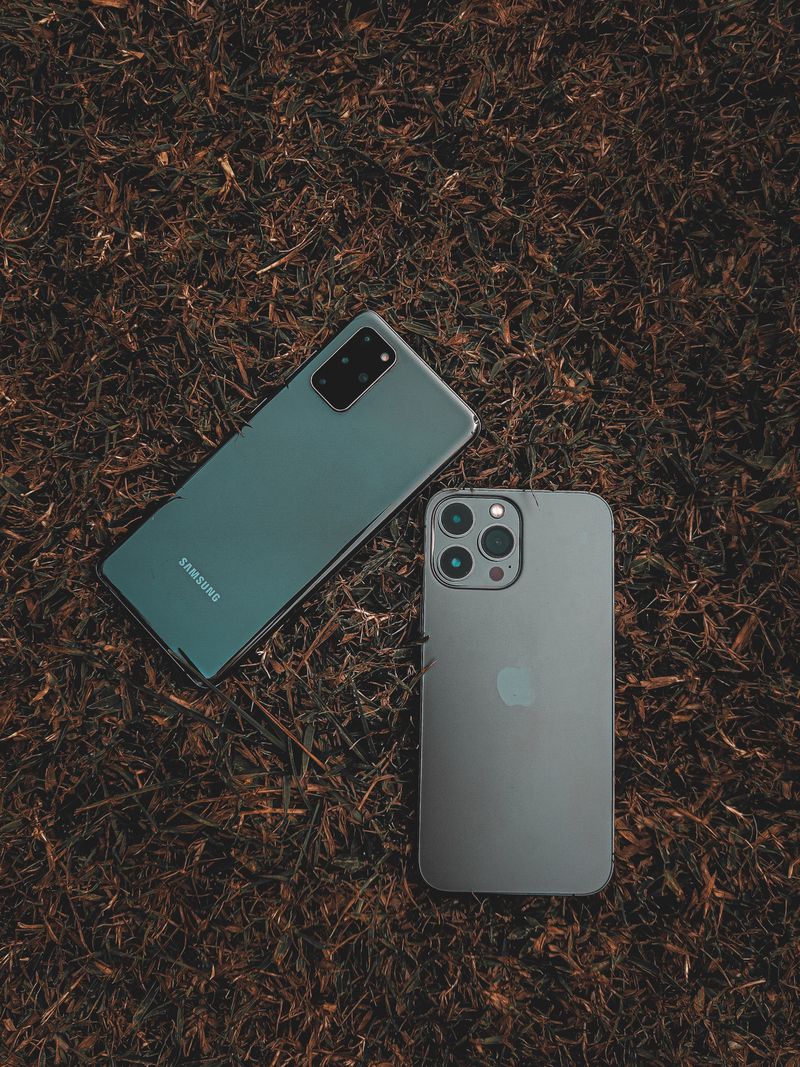
WhatsApp now officially supports cross-platform transfers using the ‘Move Chats to Android/iPhone’ feature. This works via a direct connection between both devices — no cloud backup needed.
⚠️ Important: Cross-platform transfer must be done during the initial phone setup (or after a factory reset). You cannot do it after WhatsApp is already set up on the new phone. Call history and payment information do not transfer between platforms.

Switch to a different Wi-Fi network or restart your router. Clear the WhatsApp cache (Android: Settings → Apps → WhatsApp → Clear Cache). Ensure you have enough cloud storage. Try backing up without videos first to reduce size.
Verify you’re using the exact same phone number and Google/Apple account on both phones. Check that the backup completed successfully on the old phone. Ensure WhatsApp is updated to the latest version on the new device.
Media downloads happen in the background after chat restore. Keep the phone on Wi-Fi and wait. If specific media is missing, open the chat and tap the blurred thumbnail to re-download. This can take hours for large media libraries.
Ensure both phones are on the same Wi-Fi, both are running the latest OS and WhatsApp version, and Bluetooth is enabled. If the transfer fails, you may need to factory reset the new phone and try again during initial setup.
No. As long as you transfer your account and verify the same phone number, you will automatically remain in all your current WhatsApp groups.
Yes, WhatsApp now offers a built-in “Transfer Chats” feature (via Wi-Fi Direct) for Android-to-Android and iOS-to-iOS transfers that bypasses cloud storage completely.
By following these exact steps, your data, photos, and messages will arrive safely on your new device. Just take your time and don’t rush the backup process.
