Physical Address
304 North Cardinal St.
Dorchester Center, MA 02124
Physical Address
304 North Cardinal St.
Dorchester Center, MA 02124

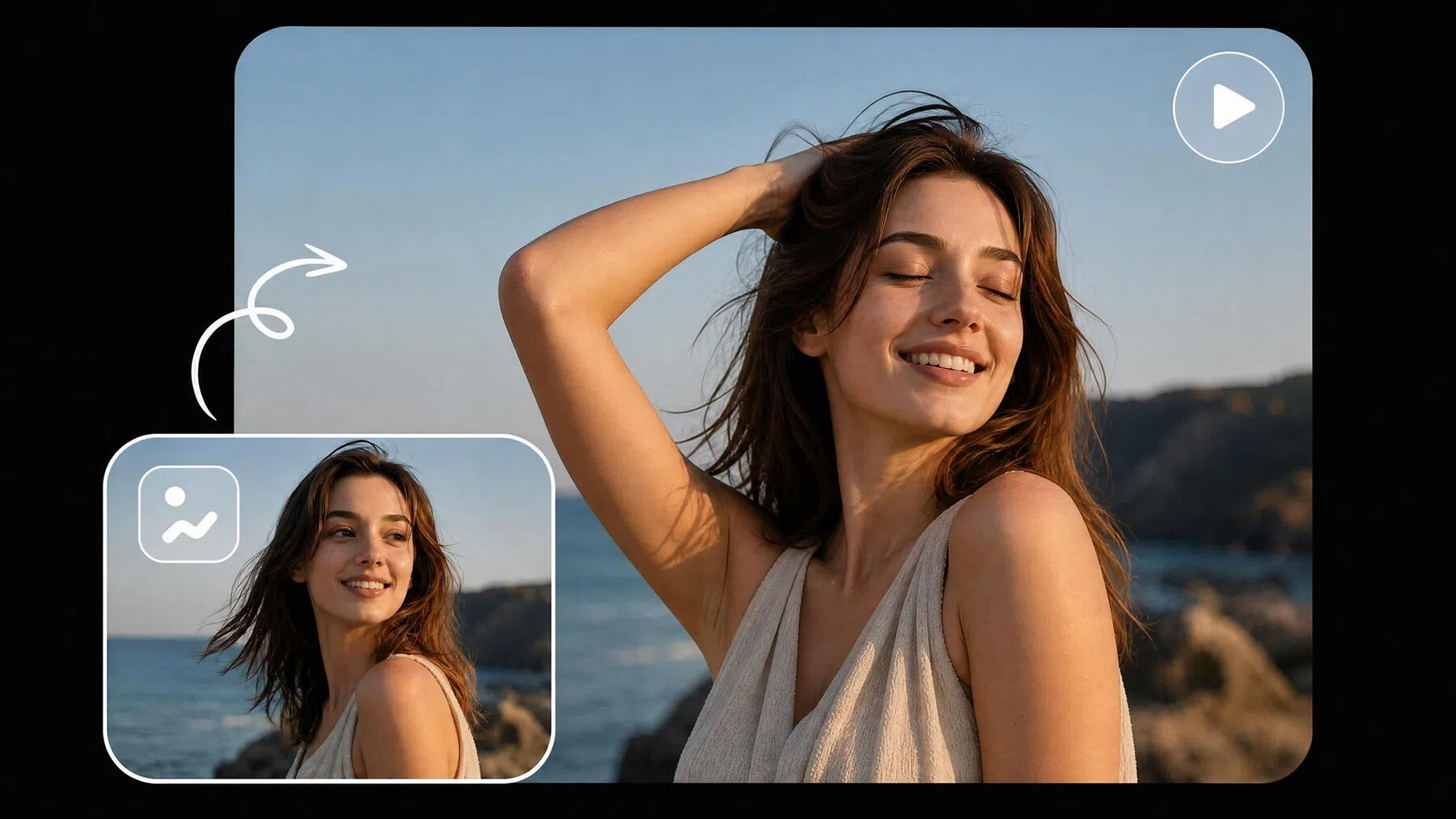
Social slots already have a crop. A WhatsApp display picture, an Instagram square, and a LinkedIn headshot are different files even when they start from the same photograph. Motion from an image to video AI pass that adds a second bottle, a second sleeve, or a prop the crop never contained turns that slot into a different product.
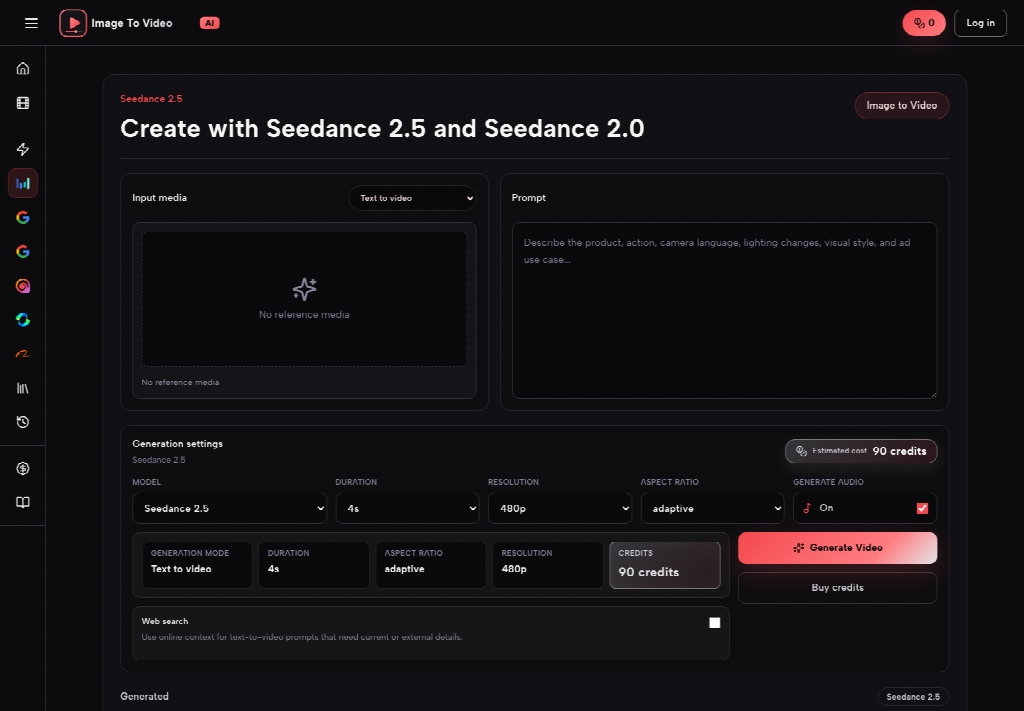
Image-tool users already resize before they publish. They lock a square for a profile, a tall frame for a story, or a wide banner for a landing strip. The failure arrives later, when someone asks for motion and the generator treats that crop as a suggestion. The useful reject is local: if the slot showed one object and the clip shows two, the file cannot replace the still.
A profile converter exists because the platform will crop you if you do not crop first. WhatsApp, Instagram, and LinkedIn each punish a leftover edge. Teams that live on an image-tool site already did that work. They exported a 1:1 still because the slot is 1:1. They exported a 9:16 still because the story is 9:16.
Motion that ignores that contract wastes the resize. A 16:9 clip forced into a square slot will shave the object you just centered. A square clip forced into a story will pillar-box the product into a stamp. The reader never sees the careful crop. They see a second object that appeared because the model filled leftover canvas.
The pass check is the live slot, not the preview player. Open the clip at the size the platform will actually show. If a second bottle enters from the edge the converter already cut, the file is a different SKU. Keep the still.
The public workspace lists Aspect ratio as 16:9, 4:3, 1:1, 3:4, 9:16, 21:9, and adaptive. The starting pick is 16:9. That default is a demo for a wide player, not a WhatsApp display picture and not an Instagram grid tile.
Leaving 16:9 on a file you already resized to 1:1 is how extra objects appear. The model has leftover width. It invents a sleeve, a second label, or a table edge the still never showed. Designers usually catch that when they drop the clip back into the same converter and the product is no longer centered.
| Square slot already cut | Default widescreen left on |
| Aspect set to 1:1, or adaptive if the still already matches the slot | Aspect stays on factory 16:9 after a 1:1 export |
| The object stays centered; leftover canvas is gone | Leftover width invites a neighbor the crop already removed |
| The same converter that sized the still can host the clip | The converter shaves the product or shows a second SKU |
| A short hover on one bottle, one face, or one logo | A wide demo that invents a sleeve, label, or table edge |
Read the table as a reject rule, not as a style guide. Adaptive follows the still. Use it when the crop is already correct and you do not want a second ratio argument. Use a named ratio when the slot is known and the still was cut for that slot. Do not leave factory 16:9 on a square export and hope the platform will be kind.
If the still went through a square converter, set Aspect to 1:1 or adaptive. If it went through a story converter, set 9:16. If it is a wide landing banner, 16:9 or 21:9 can stay. The control is doing the same job the converter already did. It is not a style preset.
Two platforms that need the same photograph still need two crops. Do not generate once at 16:9 and shove that file through every converter. Each shove invents a different neighbor. Two honest stills and two matched Aspect picks beat one widescreen master that none of the slots can host.
Resolution sits next to Aspect as 480p and 720p. Raise it when the slot will show a label a buyer can read. Leave 480p for a draft that will never replace the still. The crop is still the first decision. A sharper file of the wrong ratio is still the wrong file.
If the label already sits on a highlight, 720p will not invent contrast the still never had. If the object is already tight against the square, leftover canvas will invent a neighbor no matter how sharp the export is. Recrop first. Then raise Resolution only if the slot still needs readable type.
The published path is short once the crop is honest. Enter a prompt or add the sized still. Describe the scene and the camera move. Choose the model only if you have a reason to leave the default. View the result in Library. Then put the file back in the same slot converter you used on the still.
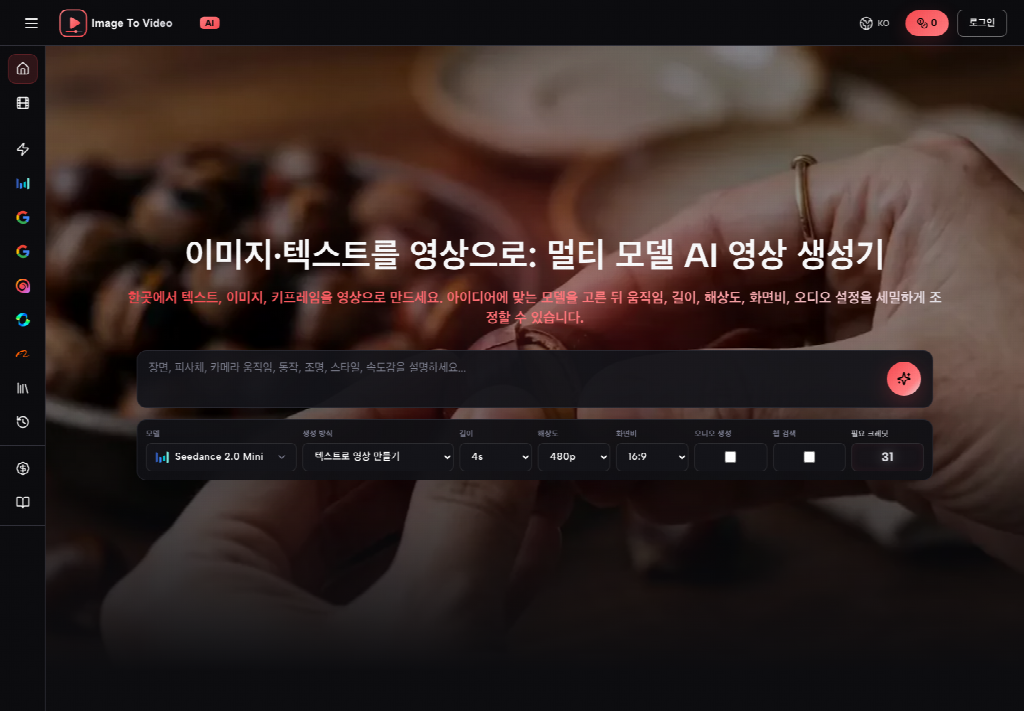
An image to video AI pass is useful on that path because the still stays the source. The prompt should name the object and the camera, not a new set. If the desk rewrites the product after the still is loaded, they have left the slot file.
Image To Video AI keeps Seedance 2.0 Mini as the default model. Leave that pick alone on a slot pass. Switching models to get a richer table is how a second glass appears. The job is to keep the object you already sized.
Run these four checks in order before anyone spends a generate. They are the same work the converter already started. They are not a new brief.
Name the object and the camera. A slow push on one bottle is a legal sentence. A request for lifestyle, a second glass, or a richer table is a new set. The converter already removed the lifestyle. Asking the model to put it back is how the slot breaks.
Duration stretch is the same miss in another costume. Longer motion on leftover canvas makes the invented object last longer. Shorten the wish list. Set the ratio. Do not stack adjectives in the prompt to hide a control that was never set.
Library is the first hold, not the publish button. Play the clip there, then export only if the object count still matches. The second hold is the converter. If the square now shows a second bottle, the Library preview was too kind. Reject the file. Do not upload a close-enough motion tile because the generate was fast.
On the desk the check is verbal. Someone holds the still and the clip. If a buyer would think the set changed, the clip is dead. No scorecard is required. The unreadable result is the extra object, not a missing style preset.
A wide player is generous. It shows motion the slot will never host. That is why a Library file can look busy and still fail the converter. The extra sleeve lives on the leftover edge. The square crop cuts that edge last, which is when the second object becomes the story.
Write the slot name, the ratio, and the object count on the ticket before generate. Write the converter that produced the still. If the file came from a WhatsApp display-picture tool, the generate step has to stay inside that square. If it came from a story resizer, stay tall. If nobody can name the converter, stop and recrop. Motion on an unnamed slot is how extra objects sneak in.
If the still was already crowded, stop. A second generate on the same illegal crop will not clear a slot audit. The honest next step is to recrop. Image To Video AI will keep answering. The operator has to refuse the extra pass. A cleaner crop is cheaper than motion on a file that was already tight against every edge.
The grid tile that almost shipped last week started as an honest 1:1 still: one amber bottle, one white label, no second SKU. Someone left Aspect on 16:9, wrote a soft push, and generated. Library looked lively. The same square converter that had sized the still then showed a second bottle sliding in from the leftover width, plus a cuff the photograph never contained.
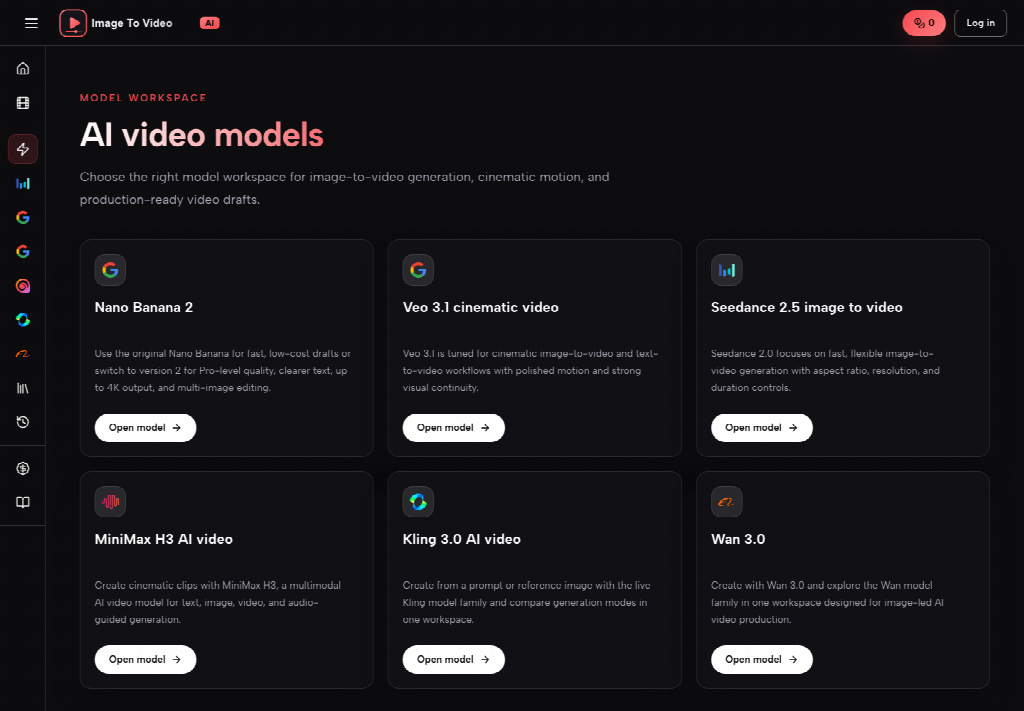
That extra bottle is the invented object. A buyer who saw the tile would think the set now includes two SKUs. Comments would ask which one was on sale. The still could not answer, because the still only ever held one bottle. The desk killed the clip and kept the photograph. Recropping would have been cheaper than an afternoon of arguing with a model about canvas the converter had already cut away.
LinkedIn headshots fail the same way when the crop was already tight on a collar and leftover canvas grows a second shoulder. WhatsApp display pictures fail when a wide default turns a single face into a pair. The Instagram case is just the one that is easy to show a buyer: one product in, two products out. The slot already told you the count. The generate step has to listen.
Use this path when a still already matches the live slot and the team only needs a short hover. Lock Aspect to that slot. Leave Seedance 2.0 Mini on the default. Generate only after the object count is written down. Sign the clip off in the same converter that sized the still.
Image To Video AI is useful on that narrow job because the still stays the source and the ratio control is visible before credits fire. The slot stays calmer when the operator refuses a default widescreen pass that invents a second product.
The workspace will not tell you whether the PNG from the brand is the SKU you sell. It will not read your converter. It will not catch a second bottle that appears only as the camera eases in. The person who owns the slot still has to count objects before anything replaces the still.
