Physical Address
304 North Cardinal St.
Dorchester Center, MA 02124
Physical Address
304 North Cardinal St.
Dorchester Center, MA 02124
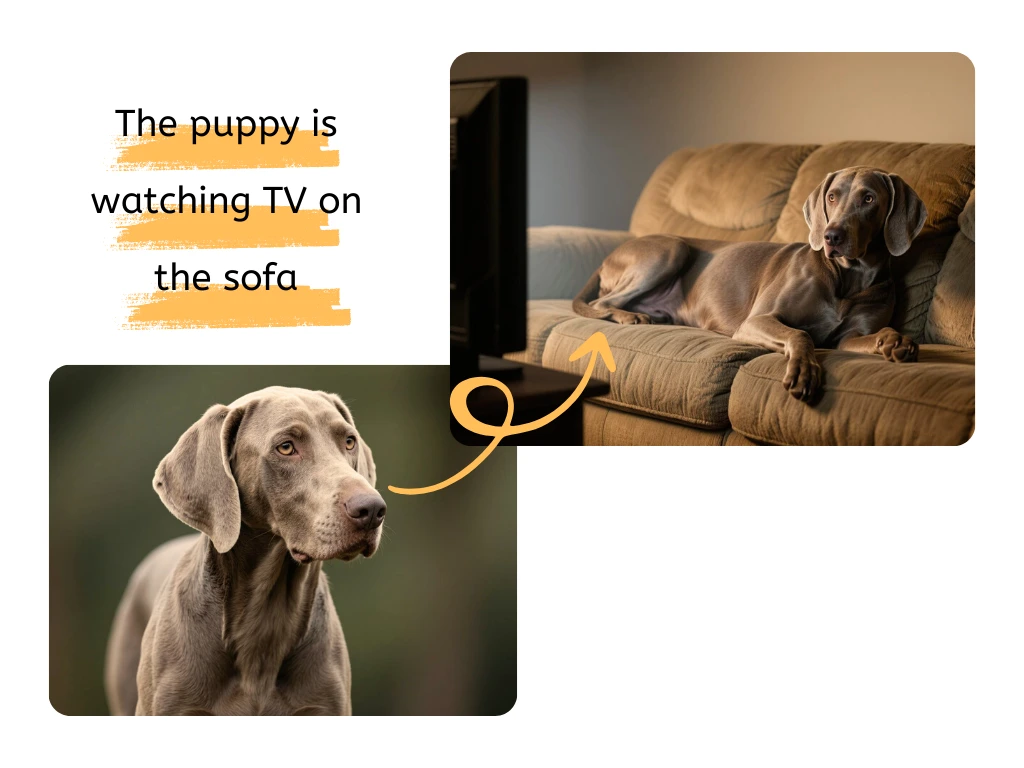
Getting a clean, professional-looking photo used to mean hours spent in complicated software. You had to trace edges, zoom in on tiny details, and hope for the best. Today, that entire process is a thing of the past. Thanks to powerful artificial intelligence, you can now remove the background from any image in seconds, and you can do it for free.
This guide will show you exactly how to get a perfect cutout for your products, profile pictures, or creative projects. We’ll cover the best free AI tools available in 2026 and walk you through the simple steps to get a flawless result every time.
A clean image without a distracting background is one of the most useful assets you can have. It’s a simple change that makes a huge impact across different areas.
* E-commerce Success: For online stores, product photos are everything. Removing the background and placing your product on a pure white or neutral background makes it look clean and professional. This helps customers focus on the item, which can lead to more sales.
* Consistent Branding: Marketers and content creators need to maintain a consistent look across social media, websites, and ads. Removing the original background allows you to place your subject on a branded graphic or color, reinforcing your brand identity.
* Professional Headshots: A busy background can ruin a great headshot. By removing it, you can place yourself against a simple color or a more professional setting. It’s perfect for LinkedIn profiles, company websites, and presentation slides.
* Creative Projects: Want to make a fun collage, a YouTube thumbnail that pops, or a personalized greeting card? Removing the background from your photos gives you the freedom to place your subject anywhere you can imagine.
The internet is full of tools that promise great results, but not all are created equal. Some are slow, some leave messy edges, and others require you to sign up for a paid plan to download a decent-quality image. We’ve focused on the top-tier options that deliver on their promises. These tools use advanced AI to give you clean cutouts quickly and without any cost.
For users who need more than just a simple background removal, a full-featured editor is the best choice. These platforms combine the power of a one-click background remover with other essential editing tools, giving you a complete creative suite in one place. You can remove a background, add new text, apply filters, and adjust colors without ever leaving the website. This is the ideal option for small business owners, marketers, and content creators who want to streamline their workflow.
Our top recommendation in this category provides an incredibly powerful and intuitive experience. You simply upload your image, and the AI instantly identifies and removes the background with remarkable precision. From there, you have a full set of tools at your disposal to perfect your image. It’s the perfect blend of power and simplicity, making it our go-to Free AI Image Editor.
Sometimes, you just need one thing done perfectly and quickly. If your primary goal is to remove backgrounds from a batch of images as fast as possible, a specialized tool is your best bet. These tools are built for a single purpose, so their interface is often cleaner, and the process is even faster. You don’t have to navigate through other editing menus; you just upload, download, and move on to the next image.
This is especially useful for e-commerce store owners who need to process hundreds of product photos or anyone working on a tight deadline. The best specialist tools offer incredible accuracy, handling tricky details like hair and fur with ease. For lightning-fast, high-quality results, we highly recommend using a dedicated Free Image Background Remover. It focuses exclusively on doing one job exceptionally well, saving you valuable time.
Using modern AI tools is incredibly simple. While each interface is slightly different, the core process is nearly identical across the best platforms.
The quality of your result often depends on the quality of your original photo. For the best outcome, choose an image where:
* The main subject is in focus.
* There is a clear contrast between the subject and the background.
* The image is a reasonably high resolution.
An AI can still work wonders on challenging photos, but starting with a clear image will always give you the most precise cutout.
Navigate to the tool of your choice. You’ll typically see a large button that says “Upload Image” or “Select a Photo.” Most tools also support a simple drag-and-drop feature, where you can drag the image file from your computer directly onto the webpage.
This is where the magic happens. As soon as your image is uploaded, the AI gets to work. It analyzes the photo to identify the foreground (the subject you want to keep) and the background (everything you want to remove). This process usually takes just a few seconds. You don’t have to do anything but wait.
After the processing is complete, the tool will show you a preview of your image with the background removed. In most cases, the result will be perfect. The background will be transparent, leaving only your main subject. Look for a “Download” button to save the new image to your device. Be sure to save it as a PNG file, as this format supports transparent backgrounds.
As you explore different options, you’ll notice a few key features that separate the great tools from the average ones.
* Accuracy: A top-tier tool handles complex edges with ease. It should be able to create a clean line around hair, fur, and fine details without leaving awkward-looking artifacts or chopping off parts of the subject.
* Speed: In 2026, there’s no reason to wait. The entire process, from uploading your photo to downloading the final result, should take less than a minute.
* Ease of Use: The best tools are designed for everyone, not just graphic designers. The interface should be clean, simple, and intuitive. You shouldn’t have to read a manual to figure it out.
* Output Quality: A free tool is only useful if it provides a high-quality result. Look for tools that allow you to download a high-resolution image without a watermark.
Once you have your subject isolated, you can do much more than just place it on a white background. Here are a few ideas to get you started.
Place your product on a solid color that matches your brand’s palette. You can also add a subtle shadow effect to make the product look more realistic and grounded. This consistency creates a beautiful, professional-looking online store.
Take a picture of yourself and place it on a vibrant graphic for an Instagram post or a YouTube thumbnail. An image of a person with a clean cutout is more engaging and helps draw the viewer’s attention to your message.
Isolate your handwritten signature and save it as a PNG file. You can then easily add it to documents, emails, and contracts for a personal and professional touch.
If you have an object or icon you want to use in a logo, removing its background is the first step. This allows you to combine it with text and other design elements on any background color.
The process is simple, but a few common slip-ups can affect your final result. Here’s what to watch out for:
1. Starting with a Low-Resolution Image: If your original photo is blurry or pixelated, the AI will have a harder time finding the edges. Always start with the highest quality photo you have.
2. Choosing a Low-Contrast Photo: If your subject is a similar color to the background (like a black dog in a dark room), it can be more challenging for the AI. Try to use photos with clear separation.
3. Forgetting to Save as PNG: If you save your image with a transparent background as a JPG, the transparency will be lost and replaced with a white background. Always choose the PNG format.
4. Not Checking the Edges: AI is amazing, but it’s not always perfect. Before you use your image, zoom in and quickly check the edges to make sure everything looks clean, especially around hair or detailed areas.
Manually removing backgrounds is officially a task of the past. With the free and powerful AI tools available today, anyone can achieve a professional-quality cutout in just a few clicks. It opens up a world of creative possibilities for your business, your brand, and your personal projects.
Stop wasting time with complex software and start creating cleaner, more dynamic images today.